

Access to this tab is governed by the platform RBAC: seeing an agent in Insights does not by itself grant access to its conversations. Your org admin grants the permission through Governe, as described in Getting started.
Layout
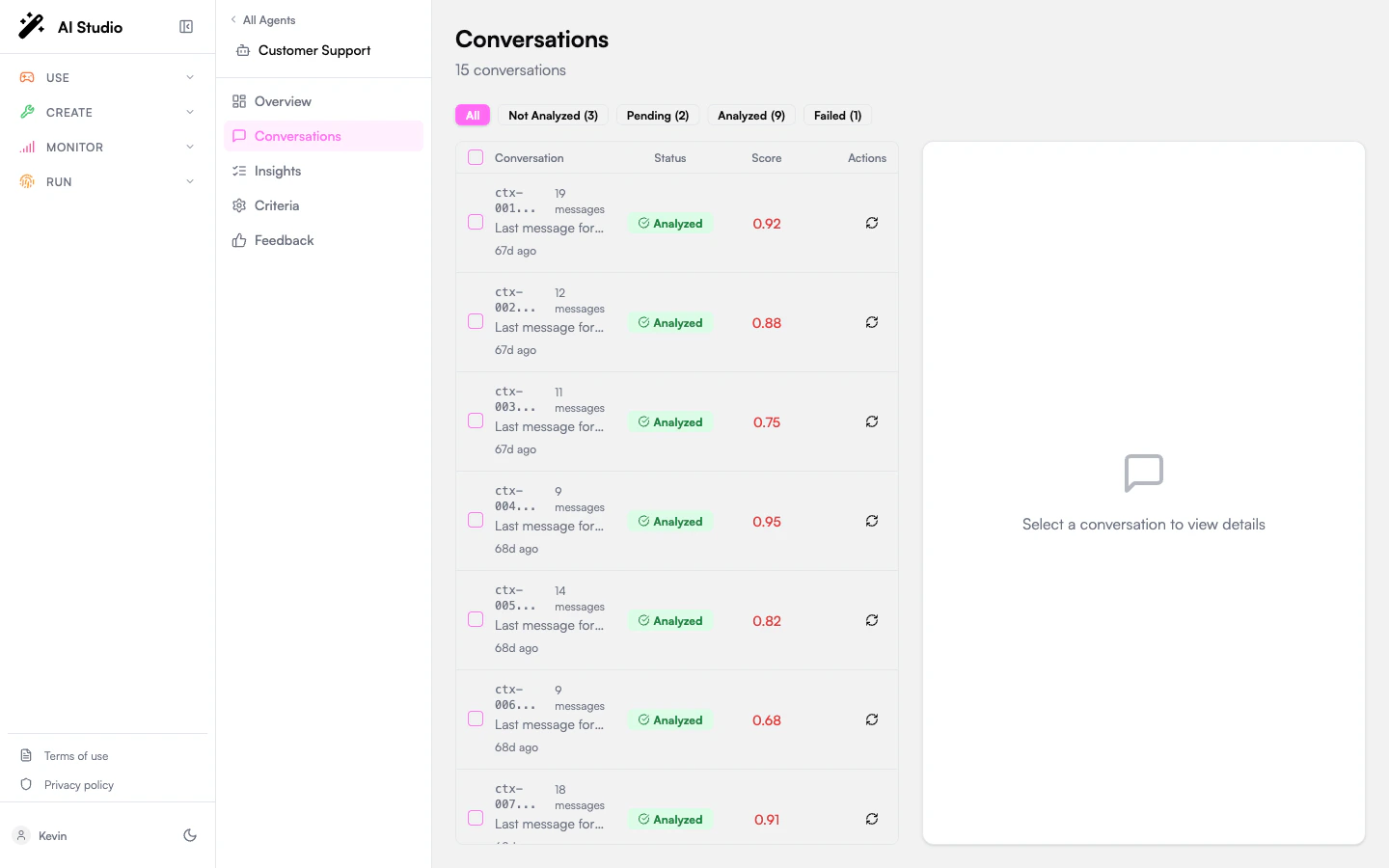
The page is a two-pane split:- Left: A status filter strip and the conversations table.
- Right: A detail panel for the selected row, with metadata, the full message thread, and the analyze button.
The period shown
The table is scoped by the date filter shared with the organization dashboard and the agent Overview. Here the window applies tolast_message_at, the date shown in the table, so a conversation that was analyzed inside the window but last active before it counts on the agent Overview without appearing in this list.
Analysis statuses
Every conversation is in one of five states:
The filter strip at the top of the table lets you scope the table to All, Not Analyzed, Pending, Processing, Analyzed, or Failed, with counts per status.
Per-row controls
Each row in the table shows:- A short conversation ID and message count.
- A preview of the last message.
- A status badge.
- An action button: ▶ Analyze for new conversations, ↻ Re-analyze for those already analyzed.
The detail panel
Open a conversation and the right pane shows:- The conversation ID and current status.
- A metadata grid: Messages count, Created, Score (when analyzed, /100, color-coded), Analyzed At.
- The message thread with sender avatars (user / bot / system), timestamps, and per-message token counts where present.
- A Load earlier messages button if the thread is long.
- An Analyze / Re-analyze button at the bottom.
Batch analysis
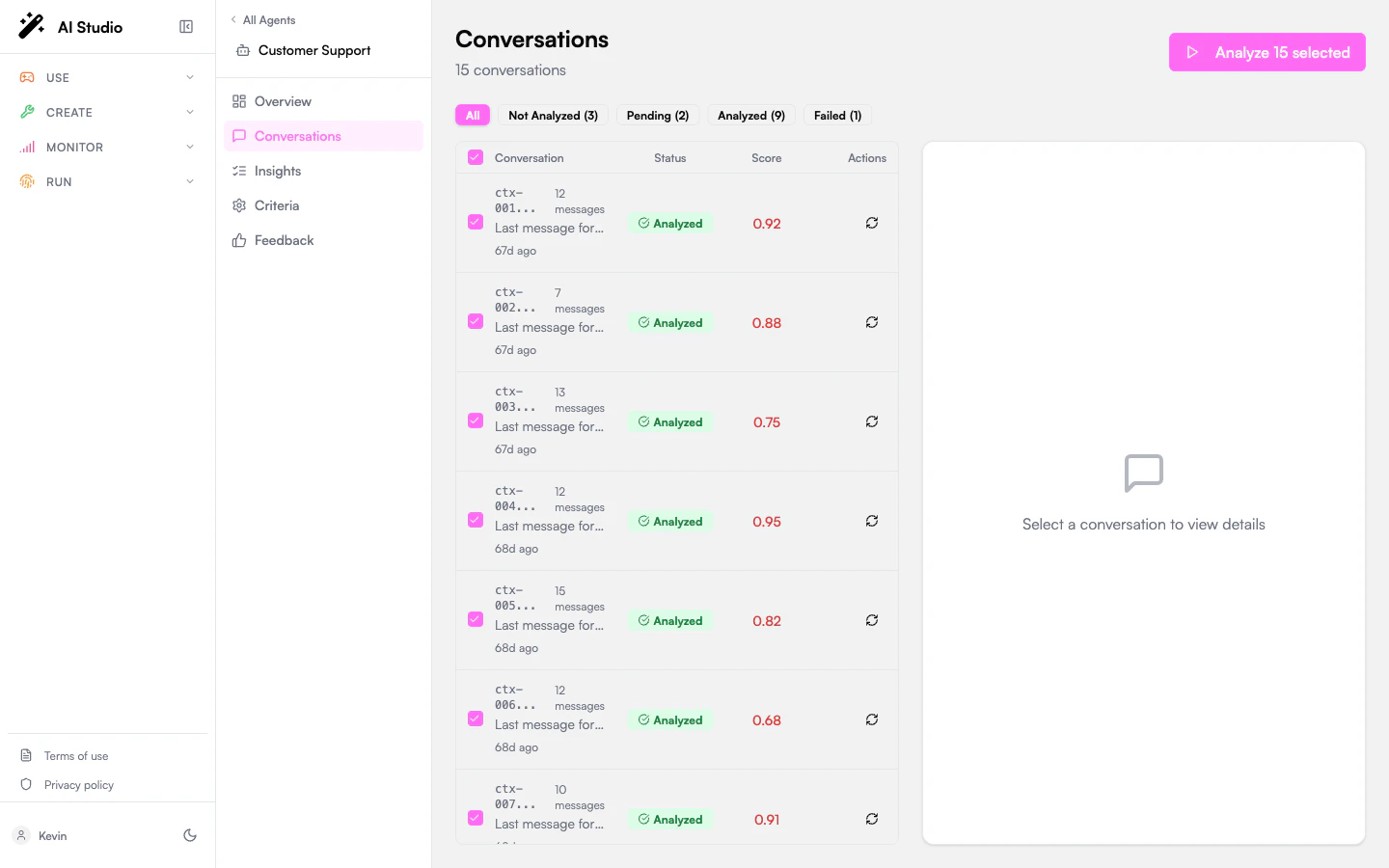
To analyze multiple conversations in one pass:1
Tick the rows you want
Use the per-row checkboxes, or the header checkbox to select all visible rows.
2
Click 'Analyze N selected'
The button appears at the top of the table once at least one row is selected. The label includes the count.
3
Wait for completion
Each conversation transitions through Pending → Processing → Analyzed (or Failed). The analyze button shows Analyzing… during the run.
How automatic analysis works
You don’t have to click anything for the bulk of analysis to happen. Insights runs a recurring pass that picks up conversations matching all of the following:- The conversation has been inactive for at least 2 hours (no new messages).
- It contains at least 2 messages.
- It has not been analyzed yet, or has grown by 5+ messages since the last analysis (re-analysis trigger).
Whether real-time analysis (triggered as soon as a conversation goes inactive) runs in addition to batch is a workspace-level setting. By default, analysis runs in batch only.
When you’d analyze on demand
- Recently changed criteria. Re-evaluate a slice of conversations against your new criteria without waiting for the batch pass.
- Failed conversations. Click Re-analyze after fixing a configuration issue.
- Spot-check. Pull one specific conversation forward to validate that your criteria produce sensible answers.
Where to go next
Read the analyzed result
See the criterion answers, summary, key moments, and token usage.
Tune evaluation criteria
Add or refine the questions the analysis pass answers.
Monitor the queue
Watch backlog and throughput, especially after a bulk reanalyze.