

Choose the right ingestion method
For a normal website crawl, use Auto-Discovery.
Before you start
Prepare the crawl scope before opening Knowledges:- Pick the smallest useful starting URL. Prefer
https://docs.example.com/productover the website homepage when only one section matters. - Decide which paths must be included and excluded.
- Check whether the site publishes a sitemap.
- Confirm that the content is accessible to the Prisme.ai platform from the network where it runs.
- Avoid crawling private or sensitive content unless the knowledge base sharing rules are already configured.
The crawler follows the target website’s robots.txt rules by default. Keep this enabled unless your organization explicitly controls the crawled site and allows a different behavior.
Start a website crawl
- Open Knowledges.
- Open the knowledge base that should receive the website pages.
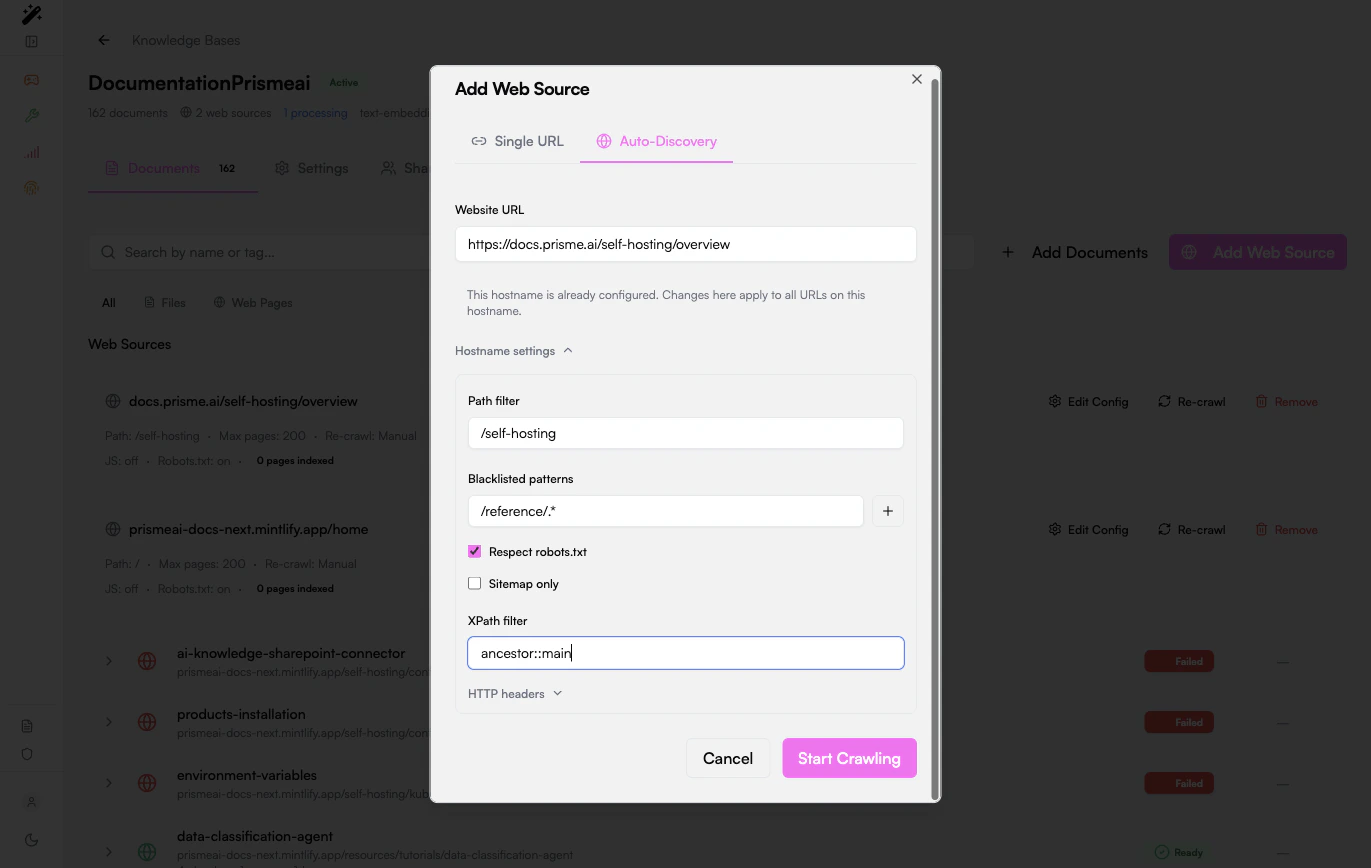
- Click Add Web Source.
- Select Auto-Discovery.
- Enter the starting URL.
- Open Hostname settings if you need to narrow the crawl.
- Click Start Crawling.
Configure the crawl
Use the hostname settings to control what gets indexed.Scope by path
Path filters are the first protection against noisy crawls. If the site has product docs under/docs, do not start from / unless the whole website is useful.
Good scope:
Exclude low-value pages
Add blacklisted patterns for pages that create duplicates or poor retrieval context:- Search pages
- Login and account pages
- Tag archives
- Generated API reference pages when they are not useful to the agent
- Large legal or navigation sections unrelated to the use case
Use sitemap-only mode for large sites
If the site exposes a sitemap, sitemap-only mode is usually more predictable than link discovery. It avoids crawling pages that are linked only from navigation, filters, or dynamic widgets.Tag the pages at crawl entry
Tags can be set on the crawl itself, next to the starting URL, before you click Start Crawling. Every page the auto-discovery finds inherits those tags as it is indexed, so a crawl of/support can land pre-tagged as support without any per-document editing afterwards.
This is the cheapest way to keep a mixed knowledge base filterable: crawl each section as its own web source with its own entry tags, then filter or search on those tags later. See Document Tags for how tags behave once the pages are indexed.
Use an XPath filter when pages contain boilerplate
Use XPath filtering when indexed chunks contain menus, footers, cookie banners, or repeated navigation text. A common starting point is:Monitor indexing
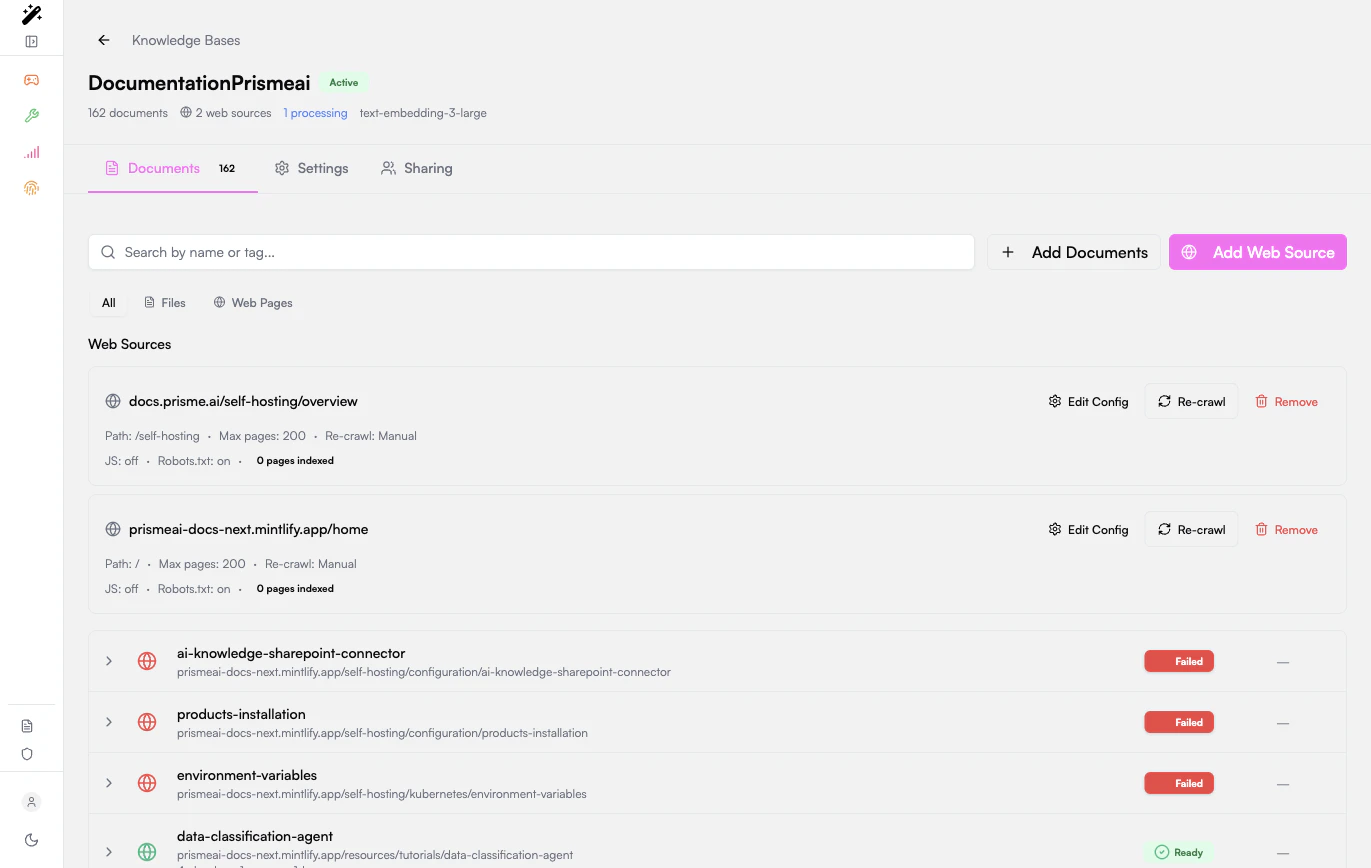
After the crawl starts, the knowledge base shows:- The configured web source.
- The path, page limit, recrawl mode, JavaScript mode, and robots.txt mode.
- Each discovered page as a document.
- The processing status for each page.
You can use Web Pages to focus the document list on crawled content only.
Keep the crawl current
Use Re-crawl when the source website changes and the knowledge base should refresh its pages. Re-crawl after:- A documentation release.
- A website migration.
- A large content update.
- Changes to path filters, blacklist patterns, XPath filters, or headers.
Test retrieval quality
Once a few pages are Ready:- Open the agent or test interface that uses the knowledge base.
- Ask a precise question whose answer exists on a crawled page.
- Check the returned sources.
- If the right page is not retrieved, inspect the page chunks in the knowledge base.
- Adjust path filters, XPath filters, or chunking settings, then re-crawl.
Troubleshooting
No pages are indexed
No pages are indexed
Check that the URL is reachable from the Prisme.ai platform, the path filter is not too restrictive, robots.txt allows crawling, and the page links are normal links that the crawler can discover.
Too many irrelevant pages are indexed
Too many irrelevant pages are indexed
Narrow the starting URL, add a path filter, add blacklisted patterns, or switch to sitemap-only mode if the site has a sitemap.
Pages are indexed but answers are poor
Pages are indexed but answers are poor
Inspect chunks from a Ready page. If chunks contain navigation, footers, or repeated boilerplate, add an XPath filter and re-crawl.
Some pages fail with empty content
Some pages fail with empty content
The page may be empty, blocked, unsupported, or mostly rendered in a way the crawler cannot extract. Try a more specific page, check the page source, and add an XPath filter when useful content is present but mixed with layout.
The crawl includes old or duplicate pages
The crawl includes old or duplicate pages
Add blacklisted patterns for archives, query parameters, print pages, and alternate routes. Then re-crawl the source.
Related guides
Document management
Manage uploaded files, single URLs, and crawled pages.
RAG settings
Tune chunking and retrieval after pages are indexed.