

How It Works
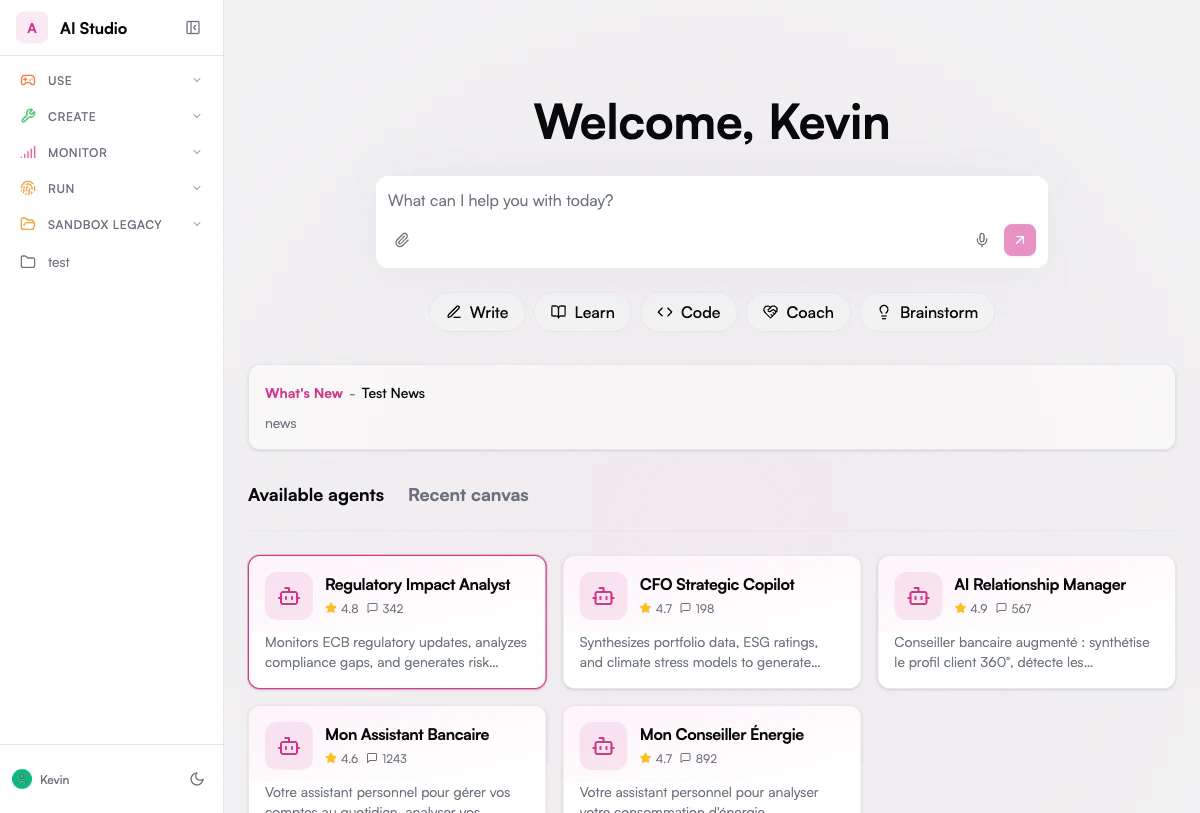
When you open the Chat home screen, category pills appear below the input box. Each pill represents a prompt category. Clicking a category opens a panel with all available prompts in that category.1
Choose a category
Click on one of the category pills below the input box (e.g., Write, Learn, Code).A floating panel opens with the list of prompts available in that category.
2
Preview a prompt
Hover over any prompt in the list. The first line of the prompt template is previewed directly in the input box, so you can see what it will send before committing.
3
Select and send
Click the prompt you want. The full prompt template is loaded into the input box. You can then:
- Edit the text to add your own context or details before sending
- Press Enter to send the prompt as-is to the AI agent
Default Categories
The Prompt Library ships with the following default categories, each containing ready-to-use templates. The list is shared per deployment and can be customized through the Category Management API below: translate the labels, add a new pill, or remove one you don’t want.Write
Professional writing and communication: executive summaries, client emails, meeting notes, business proposals, release notes.
Learn
Knowledge extraction and understanding: explain a concept, summarize a document, compare options, industry briefs, Q&A generation.
Code
Software development assistance: code review, debugging, API design, SQL query building, test case generation.
Coach
Professional guidance and mentoring: constructive feedback, presentation prep, difficult conversations, career strategy, interview preparation.
Brainstorm
Ideation and creative problem solving: idea generation, SWOT analysis, user stories, name generation, risk assessment.
Prompt Scopes
Prompts can live at three different scopes. Users always see the union of the scopes that apply to them.
When a user opens the chat home, they see global prompts + their organization’s prompts. When they open a specific agent that has its own prompts, they additionally see that agent’s prompts.
Global prompts are read-only; organizations and agent owners cannot modify or delete them, only add their own on top.
Prompt Template Structure
Each prompt template includes:
Some prompts also include tool guidance: they can suggest or force the AI to use specific tools (e.g., web search, knowledge base) to produce better answers.
Initial Setup
The Prompt Library starts empty on a fresh deployment or after a migration. Before users can see the category pills on the Chat home screen, an administrator must seed the library with prompt templates.Prerequisites
- Access to the Prompt Library workspace in Builder (slug:
prompt-library) - A workspace API key for that workspace (or admin access to trigger automations)
Step 1: Seed the Default Templates
The Prompt Library workspace ships with a built-in automation, Admin/Seed Prompts (seed-prompts), that creates 25 ready-to-use prompt templates across five categories: Write, Learn, Code, Coach, and Brainstorm.
From Builder
- Open Builder and navigate to the Prompt Library workspace
- Go to Automations and find Admin/Seed Prompts
- Click Run (or trigger it via the activity panel)
- Optionally pass an
agent_idto scope all 25 prompts to a specific agent (see Step 2 below)
agent_id in the body:
Replace
{your-env} with your deployment domain (e.g. studio.prisme.ai for the cloud environment, or your custom domain for on-premise deployments).Step 2: Scope to an Agent
By default, seeded prompts are visible to all users on the Chat home screen (organization scope). To show them only when a user is chatting with a specific agent, pass the agent’s ID when seeding, or update individual prompts afterwards:agent_id on a prompt makes it visible only when users interact with that agent, and invisible on the general home screen.
Step 3: Verify
After seeding, open the Chat interface and confirm the category pills appear below the input box. If nothing appears:- Confirm the workspace API key used belongs to the correct Prompt Library workspace
- Check that at least one prompt has
"enabled": truein its payload - Verify the user’s organization matches the scope of the seeded prompts
Example: Using a Prompt Template
Here’s a typical workflow using the Write > Executive Summary prompt:- Click the Write category pill
- Click Executive Summary in the panel
- The input box fills with the prompt template
- Replace the placeholder with your topic or paste your document content
- Press Enter to get a professional executive summary
Agents Using Prompts as Tools
Beyond the Chat home screen, agents themselves can call the Prompt Library at runtime. The library exposes aprompt_library tool that an agent can use to:
- Search for relevant prompts by keywords or category
- Fetch a specific prompt by name
- Apply the prompt’s expert guidance to its own answer
- The user’s organization prompts
- Global prompts
- The current agent’s own prompts (if any)
For Administrators
The Prompt Library is fully manageable through a public REST API. Each operation is authenticated and scoped to the caller’s organization.List & search
Paginated listing with filters by category and agent. Returns total count, page, and limit.
Create
Add a new prompt scoped to your organization, optionally pinned to a specific agent.
Update
Edit any field of an organization prompt: title, content, arguments, category, tags, or enabled state.
Delete
Remove an organization prompt. Global prompts cannot be deleted via the API.
Endpoints
All endpoints require authentication. Organization prompts are visible only to members of the same organization; global prompts are visible to everyone but read-only.
Permissions
Use Cases
Internal Style Guide
Create org-wide prompts that enforce your company’s tone, formatting, and terminology in every generated email or document.
Per-Agent Specialization
Pin prompts to a specific support, HR, or sales agent so they only appear when users interact with that agent.
Compliance Templates
Provide vetted templates for regulated workflows (legal disclosures, customer notifications) that users can run in one click.
Bulk Onboarding
Seed a new agent with a curated set of prompts at creation time, scoped to that agent only.
Prompt and category management are entirely driven by the REST API documented on this page. There is no dedicated admin UI today; call the endpoints from your own tooling, scripts, or an HTTP client.
Category Management
The category pills shown on the chat home screen are read from the deployment’s configured category list. Administrators can list them, rename them (for example to translate the default English labels), add new ones, or remove ones they don’t want.List & inspect
Read the current category list with
GET /v1/categories. Each item is a string used both as the slug stored on prompts and as the label rendered in the UI.Rename
Use
PATCH /v1/categories/:value to replace a category by its translated label (e.g. rename write to Écrire).Add
Use
POST /v1/categories with { "value": "<string>" } to append a new category to the list.Remove
Use
DELETE /v1/categories/:value to remove an entry from the list.Category Endpoints
Example: translate the default categories
To switch a deployment from the default English labels to French, do it one category at a time so users never see a half-translated UI:- Pick one category (e.g.
write). PATCH /v1/prompts/:nameon every prompt that hascategory: writeto set the new value (e.g.Écrire).PATCH /v1/categories/writeto rename the pill itself.- Move on to the next category.
/v1/prompts updates first and the /v1/categories updates after, there is a window where users click the old pill (write) and see nothing because every prompt has already moved to Écrire. Doing it per category, or during a low-traffic window, avoids that.
Permissions
GETendpoints (list / single) accept any authenticated caller (user session or workspace API key).POST,PATCH,DELETErequire a workspace API key (Authorization: Bearer <workspace-api-key>). User sessions are rejected with403, even for admin users, because the configured list is shared across the whole deployment and must be managed by a service credential.- Concurrent mutations are serialized: a second admin call that arrives while another mutation is in flight is rejected with
429. Retry after a few seconds. In practice this only matters if you script bulk renames in parallel.
Privacy & Security
Prompts are stored in a secured library with strict scoping rules:- A user only sees prompts that belong to their organization, or globals shared with everyone.
- An organization cannot read or modify prompts of another organization.
- An agent’s prompts are only visible when interacting with that agent.