

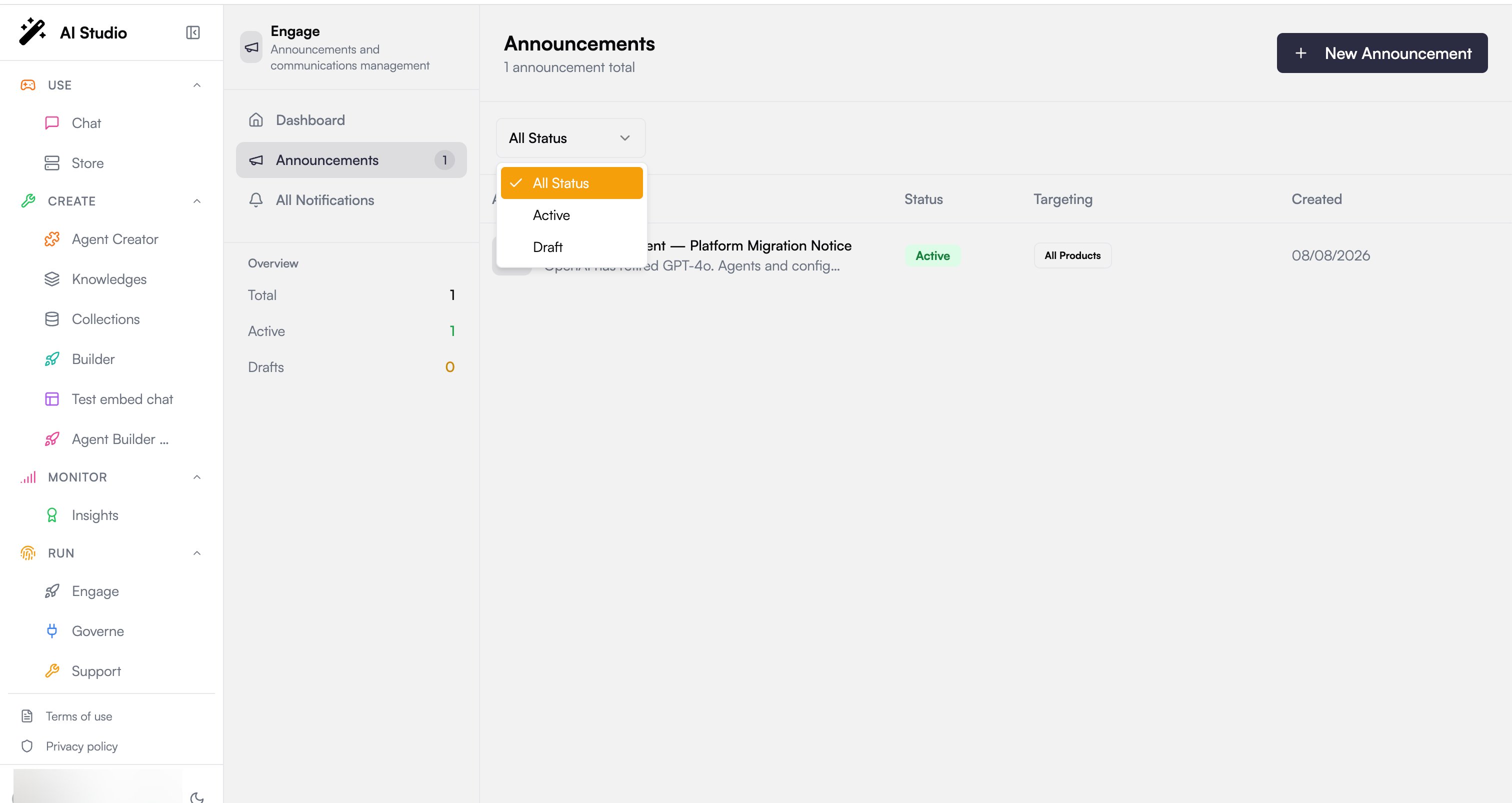
The announcements list
The list shows every announcement in your organization with its icon, title, summary, status, targeting summary, and creation date. From here you can:- Filter by status to show all announcements, only Active ones, or only Drafts.
- Edit an announcement from its row menu.
- Delete an announcement (a confirmation dialog protects against accidental removal).
- Create a new announcement with New Announcement.
Creating and editing an announcement
Whether you start fresh or open an existing one, you work in the same form. The form validates that a title and a summary are present before you can save.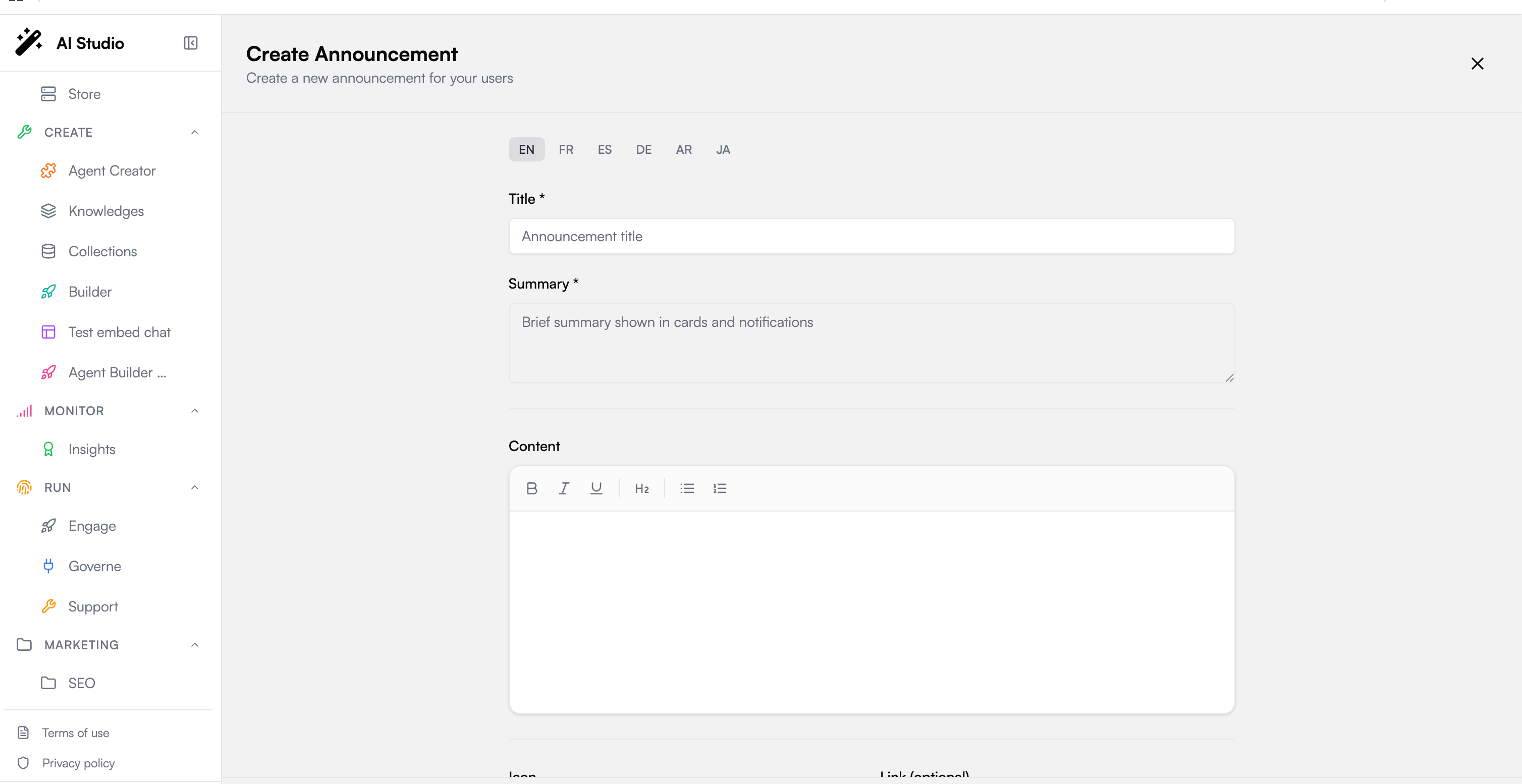
Title, summary, and content
Every announcement carries three text fields:- Title, the short headline. Required.
- Summary, a brief line shown first in cards and notifications. Required.
- Content, the full formatted body users read when they open the announcement.
Rich text content
The content editor is a rich-text editor with a toolbar for:- Bold, italic, and underline
- Headings
- Bullet lists and numbered lists
Localization
Title, summary, and content are localized per language. Language tabs let you author each field in English, French, Spanish, German, Arabic, and Japanese, and a dot marks the languages you have already filled in. Each user reads the announcement in their own language. You only need to fill the languages you want to support; a title and summary in at least one language are enough to save.Icon, link, and expiration
A few optional settings shape how the announcement appears and behaves:- Icon, an optional emoji shown next to the title (megaphone, rocket, sparkles, and more). Leave it as None to use the default.
- Link, an optional click-through target. It can be an internal route like
/features/newor an external URL likehttps://.... - Expires At, an optional date after which the announcement stops showing. Leave it empty for no expiration.
Status: draft or active
Two save actions control visibility:- Save Draft keeps the announcement in Draft status so you can keep working. Drafts are not shown to users.
- Publish sets the announcement to Active and makes it live for its targeted audience.
Targeting: the right message to the right people
Targeting decides who receives an announcement. You choose an audience across four dimensions, which are combined: a user must match the targeting to receive the announcement.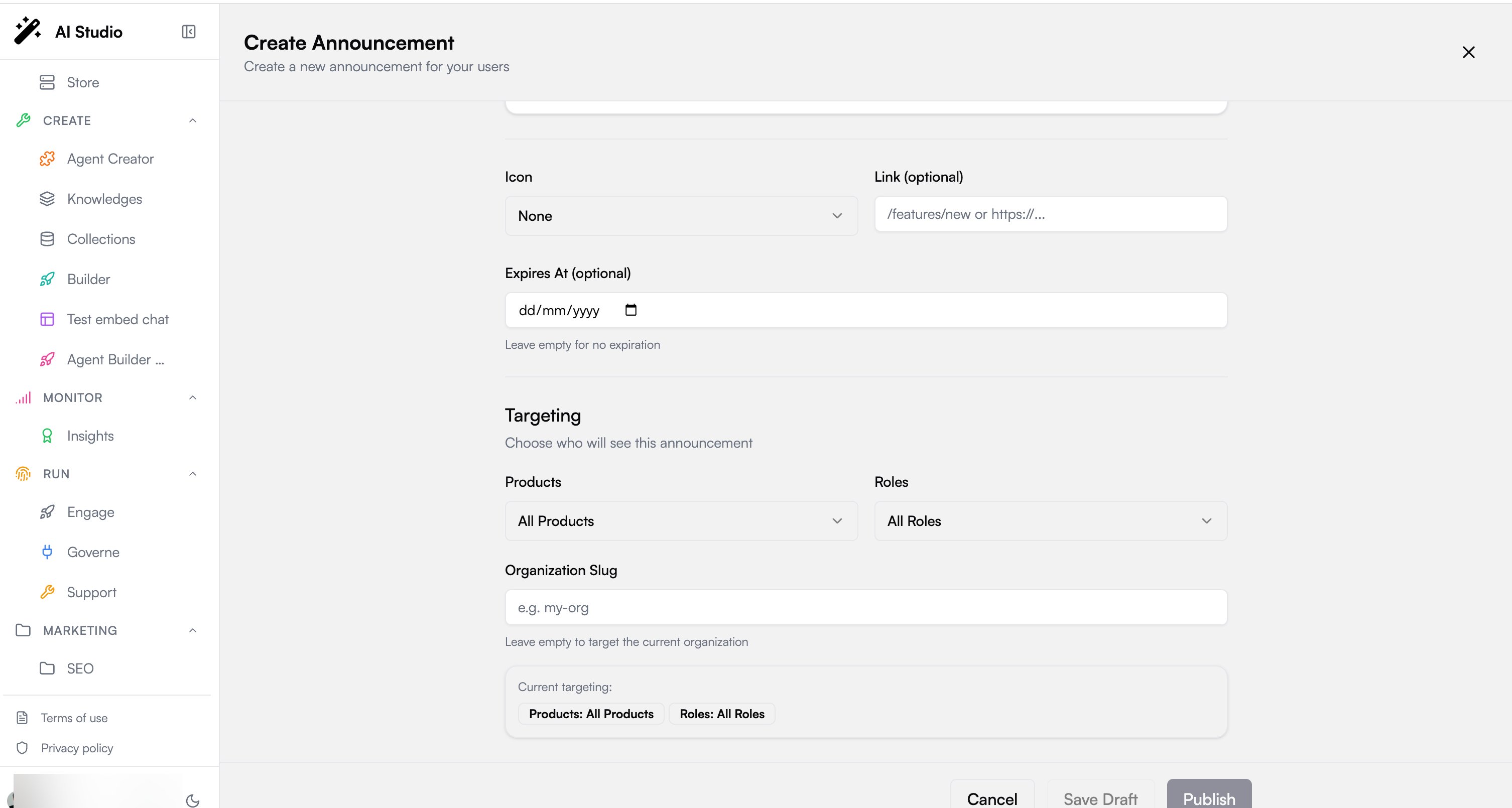
A targeting summary in the form shows the current products and roles selection at a glance.
Central and per-org, as everywhere on the platform. Organization admins publish to their own organization. Platform super-admins can additionally target a specific organization by its slug, using the Organization Slug field. Leave it empty to target the current organization.
How announcement cards read
On the Home page, active announcements are shown as cards, ordered most recent first rather than in the order the API returned them, so a new announcement is never pushed out of view by an older one. Each card carries:- Where it comes from, so a reader can tell a platform-wide message from one published by their own organization.
- A New badge for the first 7 days after publication, which then disappears on its own. Nothing to reset, and no announcement stays permanently “new”.
- The title and summary, shown once. The pre-title is not repeated on the content card.
How it is stored
Announcements are backed by the platform’s/v1/announcements endpoints, which handle creating, reading, updating, and deleting them. Published announcements are what feed the user-facing notifications feed.
Next steps
Notifications
See where published announcements land for your users
Dashboard
Track totals, active count, and drafts at a glance