

Works for function tools and MCP servers. Locking an MCP applies to every tool the server exposes; see Locking a whole MCP. File search, skills, and guardrails always behave as
auto.For end users
What you see in chat
User-first tools sit in their own section of the tools dropdown, labelled On demand (or Sur invocation in French), separate from the Available / Connected / Requires connection groups. Hovering the section header surfaces the reminder “Select to make this tool available for this message.”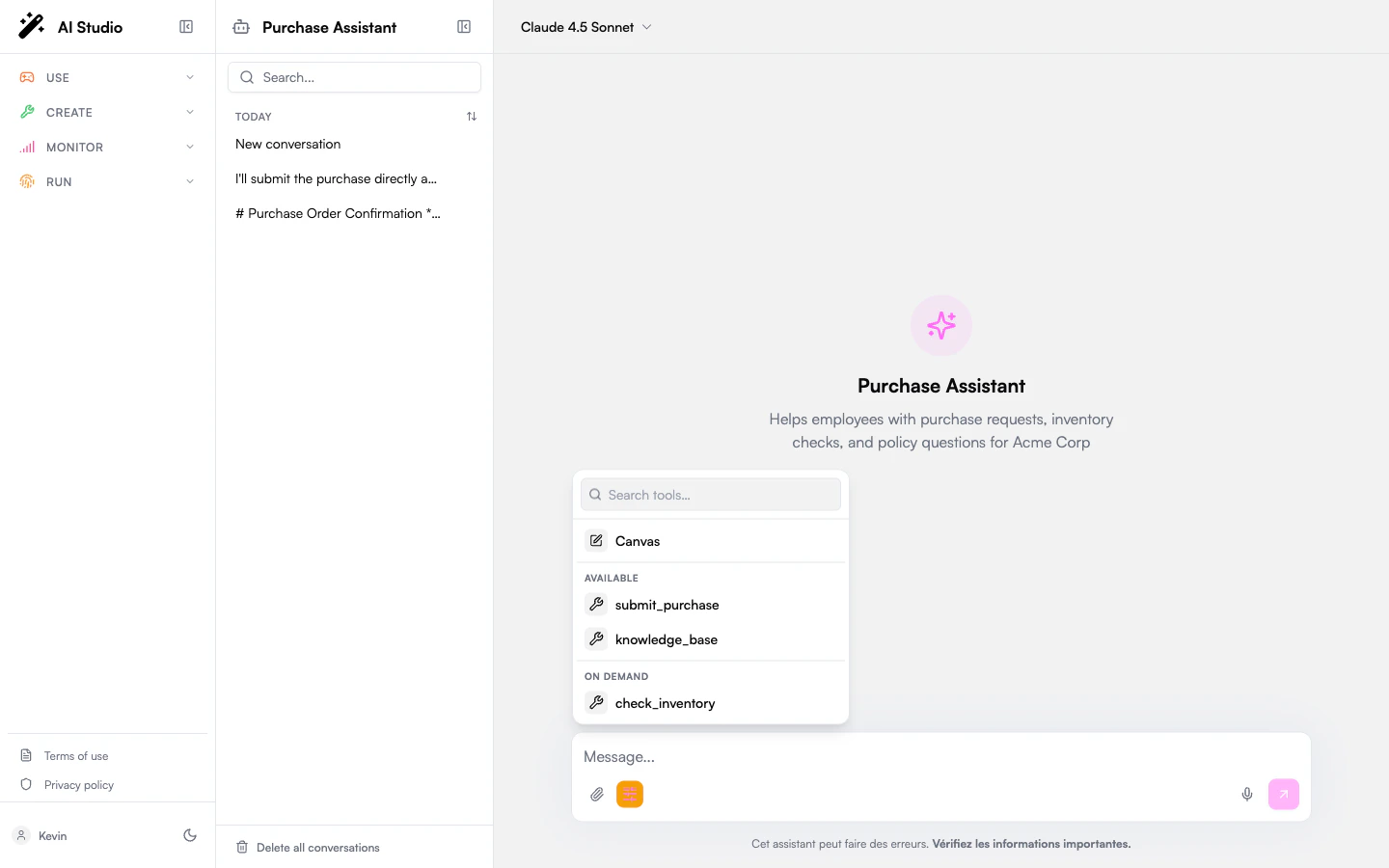
Summon a tool for one message
1
Open the tools dropdown
2
Click a tool under On demand
A chip appears next to the input.
3
Send your message
The agent now has the tool and is strongly nudged to use it. On the next turn the tool goes back to On demand automatically.
What if I don’t summon it?
The agent answers normally but doesn’t use the tool, even if you ask explicitly (“please search the web”). If the agent tries to call it anyway, the platform blocks the call silently. You are not asked to approve anything. The agent can know the tool exists by name (it appears in its list of available tools, marked as disabled), so it may acknowledge it: “I have web search available, but it’s currently disabled.” What it can’t do is call it.Which models honor the summon
When you summon a tool, the platform forces the model to use it. This is honored by most modern models. On older or less capable models the summon is best-effort: the model is encouraged but may still ignore your pick. (Note that Always ask does not rescue this case: if the model never makes the call, there’s nothing to approve.)For administrators
When to use user-first
Configure from the agent builder
Open the agent in Agent Creator → Settings → Permissions → Tool activation. Set the default to Auto or User-summoned only, then add per-tool overrides if some tools need a different behavior from the default. Function tools and MCP servers appear in the override dropdown; file search, skills, and guardrails are intentionally excluded.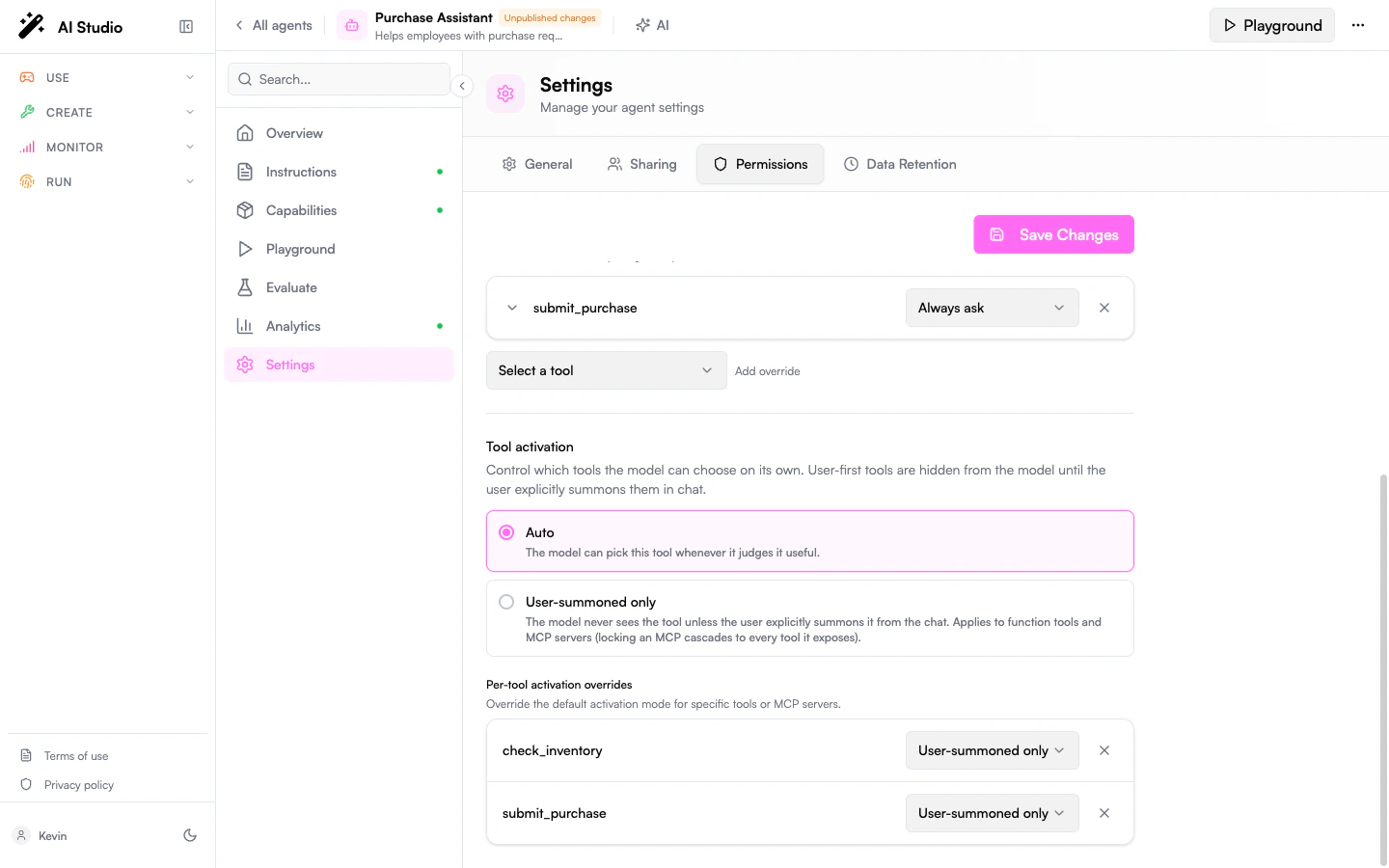
Locking a whole MCP
A rule on an MCP server applies to every tool that server exposes: you gate the integration as a whole rather than enumerating each tool it might add.- The MCP appears as a single row under On demand in the chat dropdown. Clicking it gives the agent access to the whole integration for that turn.
- After the summon, the agent sees all of the MCP’s tools and the platform nudges it to pick one of them. Which one is up to the agent; phrase your request so the right pick is obvious.
- If the MCP requires OAuth, the row stays under Requires connection until the user connects it, then moves to On demand.
- Approval rules cascade too. A
tool_permissionsrule on the MCP parent fires on every tool the server exposes; a child-specific rule wins over the parent rule on conflict.
You can’t user-first a single tool inside an MCP; locking applies at the integration level. If you need to expose only part of an MCP, register two MCP entries with different scopes and lock them separately.
Configure from AGENTS.md or the API
400 VALIDATION_ERROR) any rule that:
- Targets a tool name that doesn’t exist on the agent. MCP child names are resolved at runtime; only the persisted MCP parent name is a valid target.
- Targets an exempt tool type (
file_search,skill,guardrail,system). - Sets an activation value other than
autooruser_first. - Duplicates a tool entry.
GET /v1/agents/{id}/export and POST /v1/agents/import so an exported AGENTS.md re-imports identically.
Behavior reference
The summon does not persist across turns: each new message resets the on-demand tools to inert. Approval composition. If a summoned tool also has Always ask, the call pauses for approval. The summon context is preserved with the pending approval, so the agent can run the call on the user’s approval without re-summoning. Sub-agents. Activation rules are per agent. A sub-agent has its own configuration; the parent’s summon does not propagate.Which tool types are eligible
Known limitations
- User-first hides functionality, not the name. The agent still sees the tool name in its list (marked disabled), and past calls can leave traces in conversation history. Don’t use user-first to keep a tool’s existence secret.
- Best-effort summon on some models. Older or open-weight models may ignore the forced choice. Pair with Always ask for any action with side effects.
- MCP granularity is coarse. Locking an MCP locks every tool it exposes; no per-child toggle.
FAQ
Does locking a tool save tokens?
Does locking a tool save tokens?
Yes. On locked turns the tool’s full schema is replaced by a minimal stub, usually 200-1000 tokens per tool, per turn.
Can I lock all tools by default and unlock a few?
Can I lock all tools by default and unlock a few?
Set the default to User-summoned only and add per-tool overrides with
activation: auto for the few you always want available.Can I lock a specific tool inside an MCP server?
Can I lock a specific tool inside an MCP server?
No, locking is per-MCP. For finer control, register two MCP entries with different scopes and lock them independently.
What happens if I rename a tool?
What happens if I rename a tool?
The activation rule is keyed by the tool’s name. Update the matching
tool_activation.tools[].tool entry or the API will reject the change.Do starters / prompt suggestions auto-summon tools?
Do starters / prompt suggestions auto-summon tools?
No. If a starter relies on an on-demand tool, summon it from the starter handler or set the tool back to
auto.Related
- Tool Permissions: gate whether a tool runs. Pairs with user-first to gate whether the agent sees it.
- Custom Tools: the function tools you’ll most often want to gate.
- Capabilities: overview of all tool types.
- Playground: test summoning end-to-end before publishing.