
Documentation Index

Fetch the complete documentation index at: https://docs.prisme.ai/llms.txt

Use this file to discover all available pages before exploring further.

This page is the reference map of the Builder interface. For each surface (sidebar, header bar, editor toolbar, overview tab, automation tab, page tab, imports tab, files tab, activity tab, settings tab, deploy modal) it lists every visible control and the action it performs. Use it as a lookup when a button does not behave the way you expect, or when you need to know what a click actually persists.

Layout

The Builder is built around three persistent surfaces and one main pane that changes with the current route.
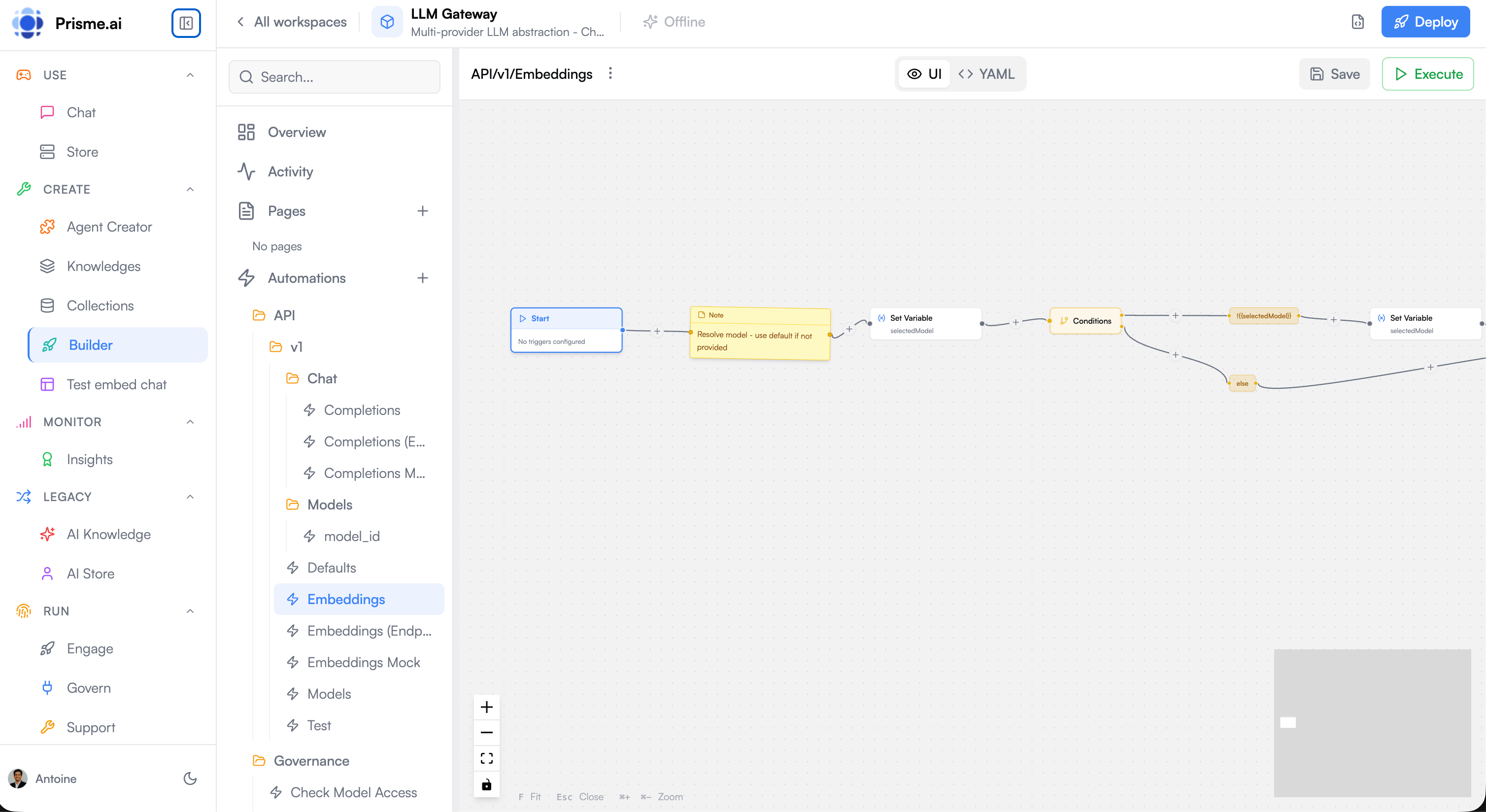
Automations
The AI assistant panel slides in from the right when toggled from the header bar.

Header bar

The header is always visible.
ControlAction
Back arrow / “All Workspaces”Returns to the Builder home (workspace list).
Workspace name and iconDisplay only. Edit them from Settings → General or by clicking Edit YAML.
Workspace descriptionTruncated to ~200px. Full text in Settings → General.
Edit YAML button (file-code icon)Opens a Monaco editor on the raw workspace index.yml (name, slug, description, config, secret schema, repositories). Saving writes through the workspaces API.
AI toggle (sparkles icon)Opens and closes the right-side AI assistant panel.
Version dropdown (visible when a deploy exists)Switches the main pane to a read-only preview of a previously deployed bundle.
Deploy button (rocket icon, primary)Opens the Deploy modal.
Presence avatarsOne avatar per other editor currently looking at the workspace.
The sidebar is the workspace navigation tree.
EntryOpensNotes
OverviewWorkspace Overview tabDefault landing tab.
ActivityActivity tabEvent log + filters + correlation IDs. See Testing & Debugging.
PagesThe page editor. The + action creates a new page; existing pages are listed below.Each page shows a sublabel: SPA for editable source, Read-only for the version currently being viewed in the version dropdown, Deployed for an immutable deploy snapshot.
AutomationsThe automation editor. The + action creates a new automation; existing automations are listed below.Automations whose name contains / characters are rendered as folders (finance/invoices/process → finance → invoices → process).
ImportsThe imports tab. The + action opens the App Store.Each installed app shows a Disabled badge if its config has it turned off.
FilesThe Files tabList of uploaded workspace assets.
SettingsThe Settings tabWorkspace configuration.
A search box at the top filters all sidebar entries (pages, automations, imports) by name or slug.

Editor toolbar

The toolbar above the main pane changes depending on what is being edited.
ControlVisible forAction
Item name (inline-editable)pages, automationsClick to rename. The new value is persisted on Enter or blur.
… menupages, automationsExposes Rename, Duplicate, Delete. Delete requires confirmation.
Code / Preview togglepagesSwitches between the source editor and the rendered preview.
Desktop / Tablet / Mobile sizingpages (preview mode)Changes the preview viewport.
Unsaved indicator (red dot)pages, automationsShown whenever there are local changes.
Savepages, automationsDisabled until there are local changes. Persists via the workspaces API.
ExecuteautomationsOpens the Execute modal where you set inputs and run the automation once. Disabled when there are unsaved changes (save first).

Overview tab

The first thing you see when opening a workspace.
SectionContent
AlertsCards surfacing setup problems or recent failures. Each card has an action link that jumps to the relevant section.
Usage stats (7 days)Three cards (Users, Requests, Errors) with trend arrows, plus a sparkline of requests per day.
Top errorsRanked list of the most frequent error events of the last week. Each row has a “View trace” link that opens Activity filtered on the correlation ID.
Recent changesLast few workspace edits with user, action, file, and timestamp. The “View history” link opens Activity filtered on workspaces.* events.
Quick actionsOne-click shortcuts: Push on Git (Settings → Versioning) and Publish as App (Settings → Packaging).
A refresh button next to the title re-fetches the stats.

Automation tab

The automation tab is the most feature-rich. Its header strip exposes:
ControlAction
Back arrowReturns to the automation list.
NameClick to rename. Hover to reveal Copy slug.
SlugThe unique identifier used in URLs and events. Not editable — derived from slug: in the YAML.
ExecuteOpens the Execute modal. Disabled if the automation is new or has unsaved changes.
DeleteTwo-click confirmation; deletes the automation.
SaveDisabled until there are changes. Writes the YAML to the workspace.
Below the header, you can switch between Visual graph and Code (YAML). The two views are fully equivalent — see Visual Editor and YAML Mapping.

Page tab

A page is a React source tree. The tab exposes:
  • Code view — a file explorer on the left and a Monaco editor on the right. Supports folder creation, file creation, rename, and delete.
  • Preview view — Builder compiles the source and renders the React app inside the preview pane, with the runtime AppProps injected (sdk, user, workspace, backends).
Save persists the entire source tree to the workspace as page files. Deploy bundles the tree into a JavaScript bundle (see Deploy modal).

Imports tab

The imports tab is where installed apps live.
ControlAction
Install (sidebar + button)Opens the App Store modal.
App cardShows the app slug and a Disabled badge if it is turned off.
View docs (external-link icon)Opens the app’s documentation URL.
Configure (gear icon)Opens the per-app config form. Fields are generated from the app’s config schema.
Uninstall (trash icon, double-click confirmation)Removes the app from the workspace.

App Store modal

  • A search box filters apps by name.
  • A category filter narrows the catalog.
  • Each app card shows its name, description, photo, and last update date.
  • Install adds the app to the workspace and creates a default config you can then edit.

Files tab

The Files tab is documented on its own page — see Files.

Activity tab

Activity is the workspace event log. It is documented in Testing & Debugging — the page covers correlation IDs, the four views (Table, Timeline, Graph, Distribution), and the filter grammar.

Settings tab

Settings is a multi-tab pane. The sections below describe each sub-tab.

General

FieldPersists to
NameWorkspace name shown in the sidebar, app store, and breadcrumbs.
DescriptionLong description shown in the overview and (if published) in the app store.
SlugURL-safe identifier used in /apps/<slug> and webhook routes. Changing it breaks existing public URLs.
SaveWrites the three fields via the workspaces API.

Versioning

Documented on the Versioning page — covers the Push, Pull, Export, Import, and Import (Prune) buttons and the differences between them.

Secrets

Documented on the Secrets module page — covers the schema-defined secrets and the Additional Secrets form.

Security (RBAC)

A Monaco YAML editor on the workspace security document.
ControlAction
Monaco editorEdits the YAML defining roles, abilities, and per-resource grants.
ResetReverts to the last saved version.
SavePersists via PUT /workspaces/{id}/security.
The role grammar itself is documented in RBAC.

Sharing

ControlAction
Member rowShows the user, their current role, and a role dropdown. Changing the dropdown calls PATCH /workspaces/{id}/members/{userId}.
Delete memberRemoves the member from the workspace.
Add member form (email + role)Calls POST /workspaces/{id}/members; sends an invite if the email is unknown, adds the user immediately otherwise.

Packaging

The Packaging tab lets you publish the workspace as a reusable app in the platform’s app store.
FieldNotes
PhotoImage upload. Limited to 2 MB and must be an image MIME type.
SlugThe app slug under which the workspace will appear in the store. Once the workspace has been published once, the slug is read-only — it becomes the immutable identifier of the app.
DescriptionOptional short description shown in the app store.
Version nameOptional human-readable version label (the version is created regardless).
PublishUploads the photo (if changed), updates the workspace, then creates an app store entry pointing at the new version.

Deploy modal

Opened from the Deploy button in the header bar. Documented in Deployment — covers the Publish tab (bundle build, version assignment) and the Share tab (Platform URL, four embed modes, <script> snippet).

Workspace YAML modal

Opened from the Edit YAML button in the header bar. A Monaco editor on the workspace index.yml. This file contains:
  • name, slug, description
  • config — non-sensitive parameters ({{config.*}})
  • secrets — the schema of expected secrets (values live in Settings → Secrets)
  • repositories — Git repository configuration (see Versioning)
  • labels — group labels used for bulk operations
  • imports — installed app references
Save writes through to the workspaces API and triggers a workspaces.updated event.

Next steps

Files

Manage uploaded workspace assets.

Versioning

Push, pull, export, import with Git or archives.

Deployment

Build a bundle and share an embeddable script.