

What an Agent Can Do with a Collection
When an agent has access to a collection, it gains a set of data tools:
Because these are structured operations on real data, answers are exact: a count is a count, not an estimate from retrieved text.
Linking a Collection to an Agent
1
Open your agent in Agent Creator
Edit the agent that should use the data.
2
Add the AI Collection capability
In the agent’s capabilities, add AI Collection (the structured-data MCP tool).
3
Pick the collection
In the tool’s configuration, choose your collection from the list. The agent’s Server URL is then set automatically to that collection’s scoped MCP endpoint (
.../v1/collections/<id>/mcp), binding the agent to exactly that collection. Leaving it on the global endpoint instead lets the agent work across collections by passing a collection id per call.4
Test in the Playground
Ask a question the data can answer (“How many active customers do we have?”) and check the agent uses the collection tools.
Access and Isolation
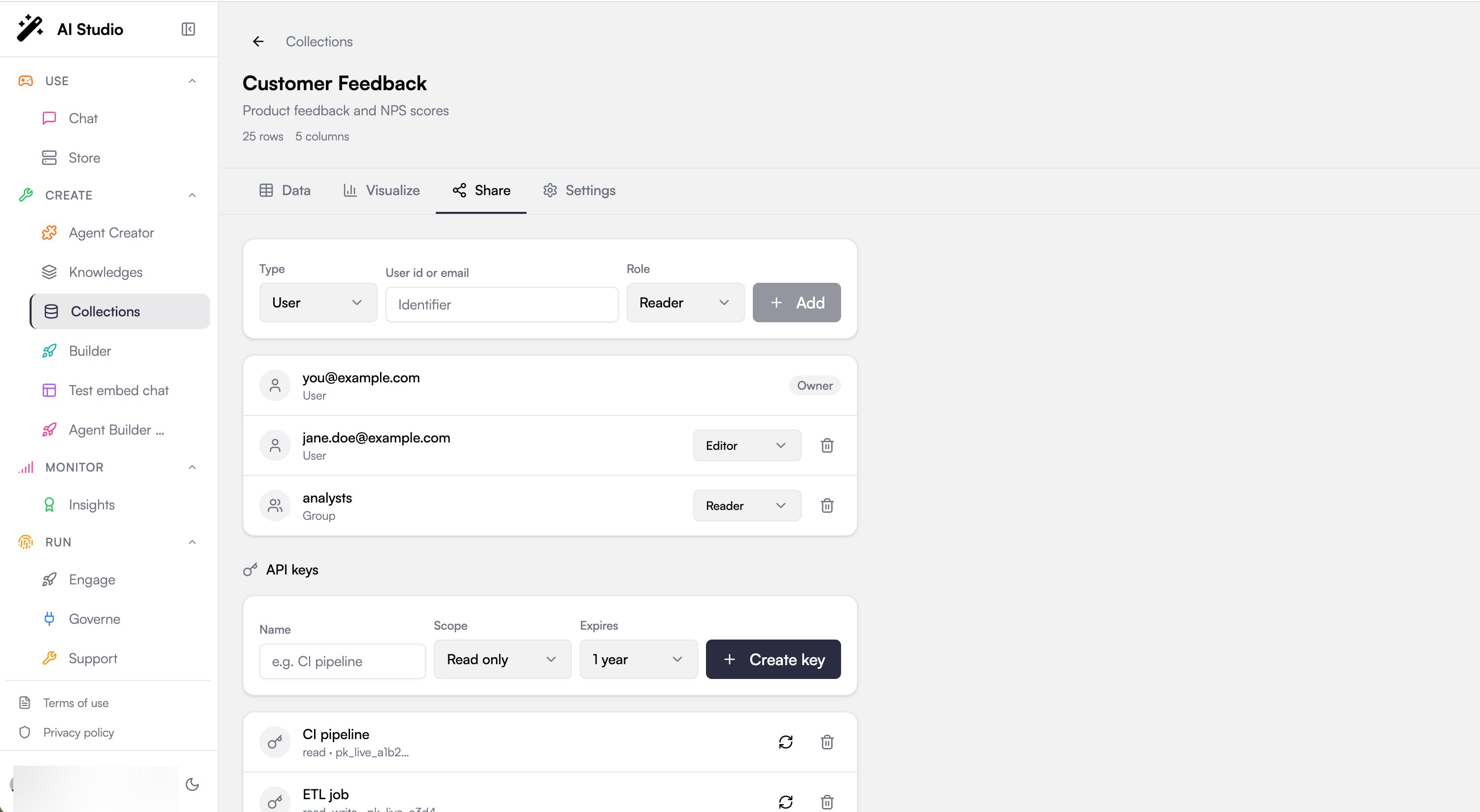
- Private by default. A collection is visible only to its owner and the agents explicitly granted access. Different agents’ working data is isolated: one agent never sees another agent’s records unless you share the collection.
- Shared when you decide. From the collection’s Share tab you grant access to users, groups, or the whole organization with a role (reader, editor, admin), or bind several agents to the same dataset, for example a capture agent that inserts leads and an analysis agent that reports on them.
- System fields are protected. Agents cannot alter record identifiers, timestamps, or ownership metadata.
- Deletes are guarded. Bulk deletion by agents is disabled unless explicitly allowed by your platform configuration, so an agent cannot wipe a collection by accident.
Auditability
Every write an agent performs is recorded as an audit event: insertions, updates, upserts, and deletions, with the actor and the affected collection. Denied access attempts are logged too. Your platform administrators can monitor these events from the governance tools.Example: A Lead-Capture Agent
1
Create the collection
Create a
leads collection, either empty or from a CSV of existing leads with columns like name, email, company, status.2
Link it to your agent
Give your sales assistant agent access to the collection, with instructions such as: “When a visitor shares contact details, upsert them into the leads collection using the email as the key.”
3
Let it run
During conversations, the agent records each lead. Upserting by email means a returning visitor updates their existing record instead of creating a duplicate.
4
Analyze
Ask the same agent (or another one linked to the collection) “How many new leads this week, by company?” and get exact numbers. Track the trend with a chart in the Visualize tab.
Best Practices
Tell the agent what the data means
Tell the agent what the data means
Column names alone are ambiguous. In the agent’s instructions, describe the collection: what one row represents, what units amounts are in, what the status values mean.
Use upsert for anything with a natural key
Use upsert for anything with a natural key
Contacts have emails, products have SKUs, tickets have references. Instructing the agent to upsert on that key prevents duplicate records over time.
Separate reading agents from writing agents
Separate reading agents from writing agents
If only one agent writes and others read, data quality issues have a single source, which is much easier to debug than five agents all inserting into the same collection.
Review agent-written data regularly
Review agent-written data regularly
Open the Data tab and sort by newest records to spot formatting drift early (wrong date formats, inconsistent categories), then tighten the agent’s instructions.
Next Steps
API Reference
The underlying REST and MCP interfaces
Agent Creator
Build and configure your agents