

/apps/<workspace-slug>. This guide shows how to decide who can use it and what each person can do in it, using the roles of the workspace. Once it is set up, giving someone access takes one step in Settings › Sharing: pick the person, pick a role.
No access-management screen to build, no allowlist to maintain: the platform enforces the roles on every call.
How it works
The app’s JavaScript bundle is not a secret: any signed-in user can load the interface. What protects your data is the set of automations the app calls. Each endpoint carries an action name, and the workspace security rules decide which role may execute which action.Page-level sharing (public switch, per-page users) applies to block pages, not to a SPA. For an app, share the workspace with a role, as described below.
Set it up
1
Declare the roles and their actions
Open Settings › Security. Add your roles under The workspace owner and editors can execute every automation; you don’t need to list them.
roles, then one rule per role listing the actions it may execute. An action is a name you choose; it links roles to endpoints.In this example, app means “can open the app” and report means “can generate a report”.2
Protect every endpoint the app calls
Add an
authorizations block to each automation exposed as an endpoint. The runtime rejects the call with 403 before running the automation when the caller’s role lacks the action.3
Add a me endpoint to adapt the interface
The app needs to know what to display: which tabs, which buttons. A small endpoint returns the caller’s role on the workspace. The runtime provides it directly in
{{user.role}}, with no API call.It is protected by the app action, so a signed-in person you have not shared the workspace with gets a 403, and the app can show a clear message.4
Adapt the app
Two rules on the React side: call the endpoints with the user’s session (the
sdk prop carries it), and treat 401/403 as a normal state of the interface.Tabs and ReportButton stand for your own components. Keep the 403 handling on every call: a role can change while the app is open.5
Deploy and share
Deploy the app from the Deploy button (see Deployment) and keep it not public, so the platform asks users to sign in before loading it.Then open Settings › Sharing: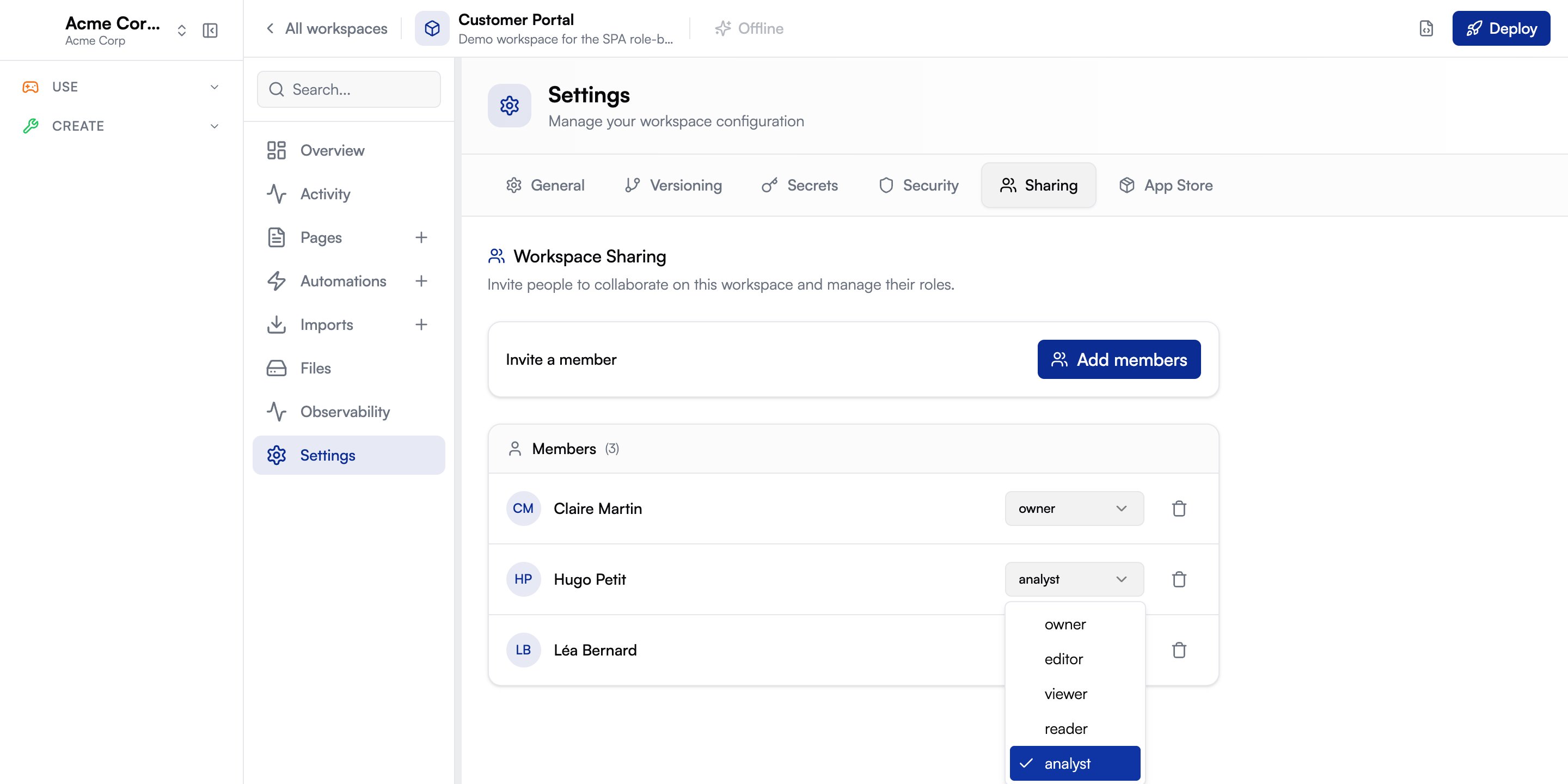
- Add members: select the people, pick their role (
reader,analyst…), confirm. - Change a role: use the role dropdown on the member’s row.
- Remove access: click the trash icon on the member’s row.
/apps/<workspace-slug>) to the people you added.Check the result
Test with at least two accounts besides yours: one per role, plus one signed-in account the workspace is not shared with.
The test that matters: with the
reader account, call the endpoint directly, outside the interface. It must answer 403, which proves that protection does not depend on what the app hides.
Good to know
People must already have an account
People must already have an account
You can only share with someone who has signed in to the platform at least once. Otherwise the Builder reports that the user could not be found.
Nothing secret in the bundle
Nothing secret in the bundle
The app’s JavaScript file is served publicly. Never put keys or data in it: everything goes through the endpoints.
Public apps
Public apps
A public app renders without sign-in, so visitors have no role and every protected endpoint refuses them. Public mode suits open experiences, not role-based ones. See Authentication & redirect.
Prefer endpoints for sensitive operations
Prefer endpoints for sensitive operations
This guide protects endpoints (HTTP calls). Route every sensitive operation through an endpoint protected by
authorizations.action.Checklist
- Roles and their actions are declared in Settings › Security.
- Every endpoint the app calls carries
authorizations.action. - The
meendpoint returns the role and is protected by theappaction. - The app calls endpoints with the user’s session and shows a clear message on 401/403.
- The app is deployed not public.
- App users are added in Settings › Sharing with a custom role, never
owner,editororviewer. - A direct call to a protected endpoint with a
readeraccount returns 403.
Next Steps
Role-Based Access Control
The full RBAC grammar: roles, rules, subjects and conditions
Pages
Build the React app and connect it to automations