

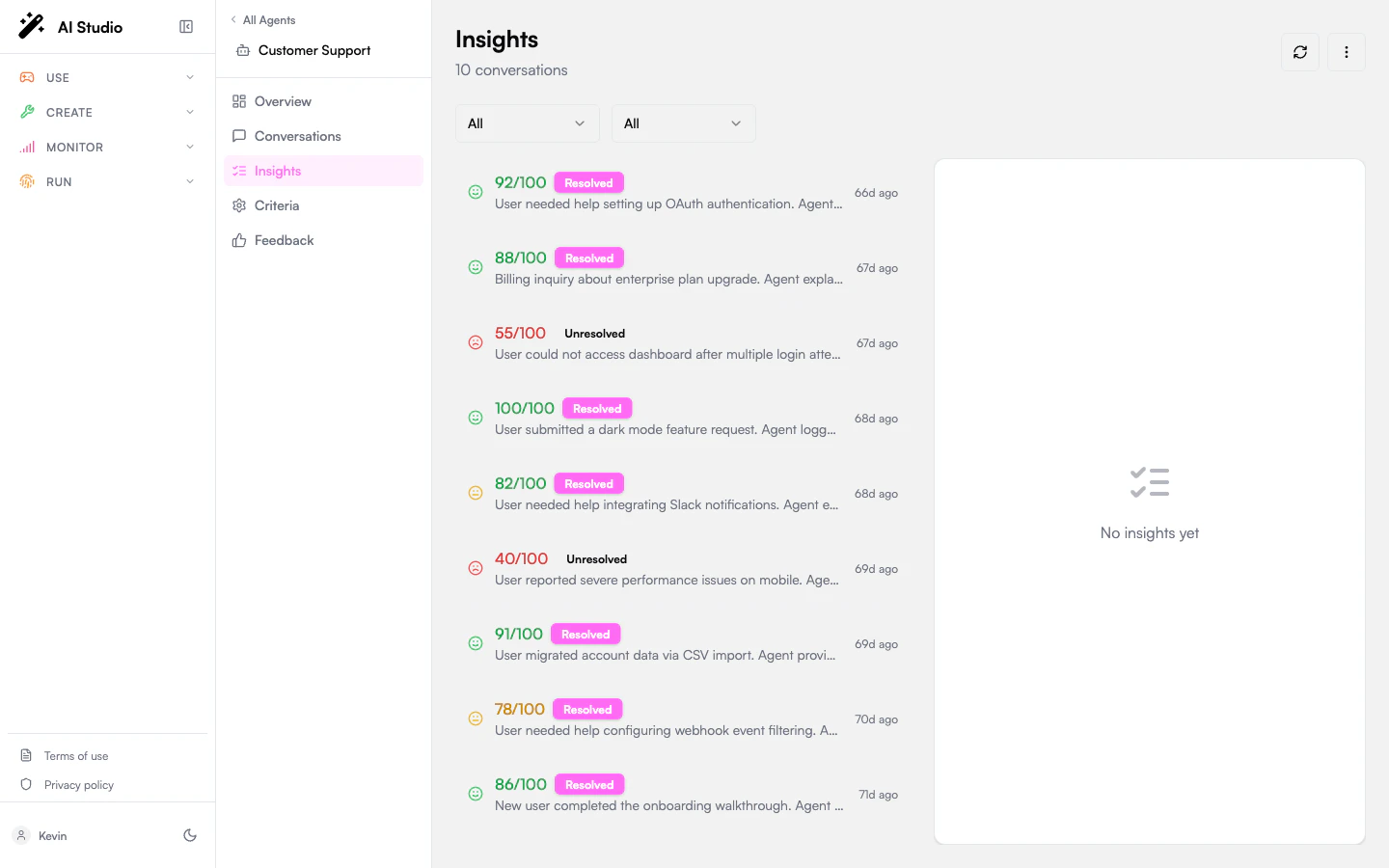
Layout
The page is a two-pane split:- Left: A filterable list of insights, one card per conversation.
- Right: The detail panel for the selected insight.
Filters
Two dropdowns at the top of the list:
The page paginates with a Load more button at the bottom of the list.
What each card shows
Click a card to load its full detail on the right.
The detail panel
Evaluation Score
Evaluation Score
The 0-100 score that drove the card badge. This number is the weighted aggregate of all criterion answers; see Evaluation criteria for how weights compose the total.
Status
Status
A green ✓ Resolved or red ✗ Unresolved badge. Driven by the
resolution Yes/No criterion (default or your override).Summary
Summary
A short paragraph generated by the analysis pass that captures what the conversation was about and how it ended.
Sentiment
Sentiment
The overall sentiment classification, a confidence percentage, and an arrow showing how sentiment progressed turn-by-turn. A negative→positive arrow is a recovery, the opposite is a deterioration.
Topics
Topics
The topics extracted from the conversation, with confidence percentages where available. These topics also feed the Topics cross-agent rollup.
Evaluations
Evaluations
The criterion-by-criterion answers. For each criterion you’ll see:
- The criterion ID.
- The LLM’s answer: ✓ Yes / ✗ No for boolean,
X/5(or your range) for score, the chosen option for category. - The LLM’s reasoning string explaining the answer.
Key Moments
Key Moments
Specific turns the LLM flagged as notable: a refusal, an escalation, a successful retrieval, a contradiction, etc. Each entry has a turn number, a type, and a description.Use Key Moments to find the small number of conversations worth a manual review without reading every transcript.
Token Usage
Token Usage
Input tokens, output tokens, and the model used by the analysis pass. This is the cost of running the analysis itself, not the cost of the original conversation.
Metadata
Metadata
The conversation ID (a click-target into Conversations when integrated), the Analyzed At timestamp, and the model used.
Export
The three-dot menu in the top-right has Export CSV. The exported file contains one row per insight currently loaded in the list (after your filters apply): conversation ID, score, resolved flag, sentiment, topics, summary, analyzed-at timestamp, and model. Pagination is your responsibility: the export captures whatever’s been loaded. Click Load more to pull additional rows into the list before exporting. See Exporting data for the full schema and limitations.Re-evaluating an insight
Insights aren’t edited in place. To regenerate one against newer criteria or a different model:1
Open the corresponding conversation
Navigate to Conversations and find the matching row (the conversation ID is shared).
2
Click Re-analyze
From the detail panel, Re-analyze runs the pipeline again. The new insight overwrites the old one.
Where to go next
Tune your criteria
If the LLM’s answers feel off, the question wording is the lever.
Browse conversations
Trigger analysis or re-analysis from the conversation side.
Read sentiment trends
See sentiment percentages aggregated across all insights for the agent.