> ## Documentation Index
> Fetch the complete documentation index at: https://docs.prisme.ai/llms.txt
> Use this file to discover all available pages before exploring further.
# Building a No-Code RAG Agent
> Learn how to create a powerful retrieval-augmented generation agent without writing code using Knowledges
This tutorial guides you through building a Retrieval-Augmented Generation (RAG) agent on Prisme.ai without writing any code. In v27 the work is split across two products: **Knowledges** hosts the knowledge base (document ingestion, embeddings, retrieval), and **Agent Creator** hosts the agent itself (instructions, model, playground, evaluations). You'll wire them together so your agent answers questions grounded in your documents.
## What You'll Build
A complete RAG system with:
* A Knowledge Base in **Knowledges** containing your documents
* Vector embedding and retrieval handled by the Knowledge Base
* An agent in **Agent Creator** that consumes that Knowledge Base for context
* The Agent Creator **Playground** for testing conversations
* **Evaluations** and **Analytics** in Agent Creator for ongoing quality control
This split lets Data Scientists, Data Engineers, Developers, and Business Teams collaborate from a single source of truth: knowledge stays curated in one place, while agents that depend on it are configured and tested independently.
## Prerequisites
Before starting this tutorial, make sure you have:
* Access to a Prisme.ai workspace with **Knowledges** and **Agent Creator** enabled
* Basic understanding of prompting concepts
* Documents to ingest (web pages, PDFs, Word documents, PowerPoint presentations, etc.)
## Step 1: Understanding the Knowledges Interface
Let's start by orienting ourselves inside the Knowledges product.
From AI Studio, open the **Knowledges** product (`/apps/ai-knowledge`).
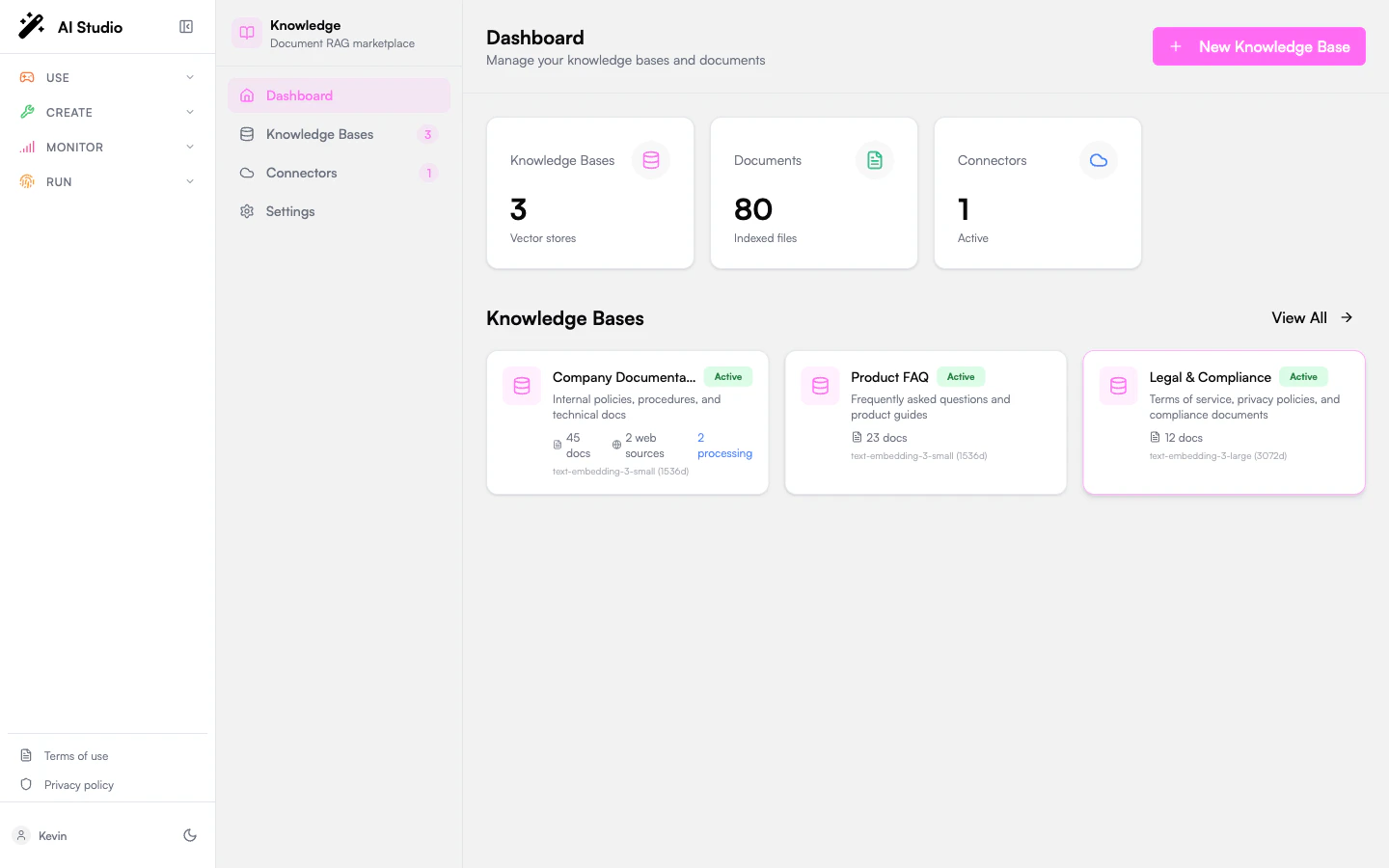
The left sidebar gives you four entries:
* **Dashboard**: overview with high-level stats — number of Knowledge Bases, Documents, and Connectors.
* **Knowledge Bases**: the list of every knowledge base in your workspace, with quick access to each one.
* **Connectors**: third-party SaaS integrations (SharePoint, Google Drive, Notion, Confluence) that sync content into Knowledge Bases. Note: web crawling and direct file uploads are **not** here — they live on each Knowledge Base's detail page via **Add Web Source** and **Add Documents**.
* **Settings**: workspace-level Knowledges settings.
The dashboard tiles are the fastest way to gauge volume: how many knowledge bases exist, how many documents are indexed across all of them, and how many third-party connectors are wired up.
 ## Step 2: Create a Knowledge Base
Now create the knowledge base that will hold your documents.
In the Knowledges sidebar, click **Knowledge Bases**.
Click the **+ Create** button in the top-right (the Dashboard's **+ New Knowledge Base** tile opens the same dialog).
Give the Knowledge Base a clear name and description that reflect what it covers. Pick the embedding model you want to use for vectorization — the choice affects retrieval quality and cost.
Once created, open it from the Knowledge Bases list to access its documents and settings.
## Step 2: Create a Knowledge Base
Now create the knowledge base that will hold your documents.
In the Knowledges sidebar, click **Knowledge Bases**.
Click the **+ Create** button in the top-right (the Dashboard's **+ New Knowledge Base** tile opens the same dialog).
Give the Knowledge Base a clear name and description that reflect what it covers. Pick the embedding model you want to use for vectorization — the choice affects retrieval quality and cost.
Once created, open it from the Knowledge Bases list to access its documents and settings.
 Knowledges is model-agnostic for both embedding and generation, so you can swap models later without rebuilding the knowledge base from scratch.
## Step 3: Add Documents
With the Knowledge Base open, ingest your content.
Inside the Knowledge Base, navigate to its documents tab.
Click **Add Documents** and either upload files from your computer or paste URLs to web content. For full website ingestion, see the **Add Web Source** flow on the Knowledge Base detail page.
Per Knowledge Base, you can adjust how content is chunked before embedding:
* **Text Splitter**: static (fixed-size chunks) or dynamic (content-aware) segmentation
* **Chunk Size**: the size of each segment
* **Overlap**: how much content overlaps between adjacent chunks to preserve context
See [RAG settings](/products/ai-knowledge/rag-settings) for the full reference.
Start the processing job. Knowledges will load and parse each document, extract and clean the text, segment it into chunks, generate vector embeddings, and capture metadata.
## Step 4: Create an Agent in Agent Creator and Connect the Knowledge Base
The knowledge base is ready. Now create the agent that will use it.
From AI Studio, switch to the **Agent Creator** product (`/apps/agent-factory`).
Click **+ Create agent** in the top-right. Give the agent a name and description.
Write the agent's system instructions (its role, tone, what it should and shouldn't do) and pick the generation model.
In the agent's **Capabilities** section, connect the Knowledge Base you created in Step 2. From now on, the agent will retrieve relevant chunks from that Knowledge Base each time a user asks a question.
Knowledges is model-agnostic for both embedding and generation, so you can swap models later without rebuilding the knowledge base from scratch.
## Step 3: Add Documents
With the Knowledge Base open, ingest your content.
Inside the Knowledge Base, navigate to its documents tab.
Click **Add Documents** and either upload files from your computer or paste URLs to web content. For full website ingestion, see the **Add Web Source** flow on the Knowledge Base detail page.
Per Knowledge Base, you can adjust how content is chunked before embedding:
* **Text Splitter**: static (fixed-size chunks) or dynamic (content-aware) segmentation
* **Chunk Size**: the size of each segment
* **Overlap**: how much content overlaps between adjacent chunks to preserve context
See [RAG settings](/products/ai-knowledge/rag-settings) for the full reference.
Start the processing job. Knowledges will load and parse each document, extract and clean the text, segment it into chunks, generate vector embeddings, and capture metadata.
## Step 4: Create an Agent in Agent Creator and Connect the Knowledge Base
The knowledge base is ready. Now create the agent that will use it.
From AI Studio, switch to the **Agent Creator** product (`/apps/agent-factory`).
Click **+ Create agent** in the top-right. Give the agent a name and description.
Write the agent's system instructions (its role, tone, what it should and shouldn't do) and pick the generation model.
In the agent's **Capabilities** section, connect the Knowledge Base you created in Step 2. From now on, the agent will retrieve relevant chunks from that Knowledge Base each time a user asks a question.
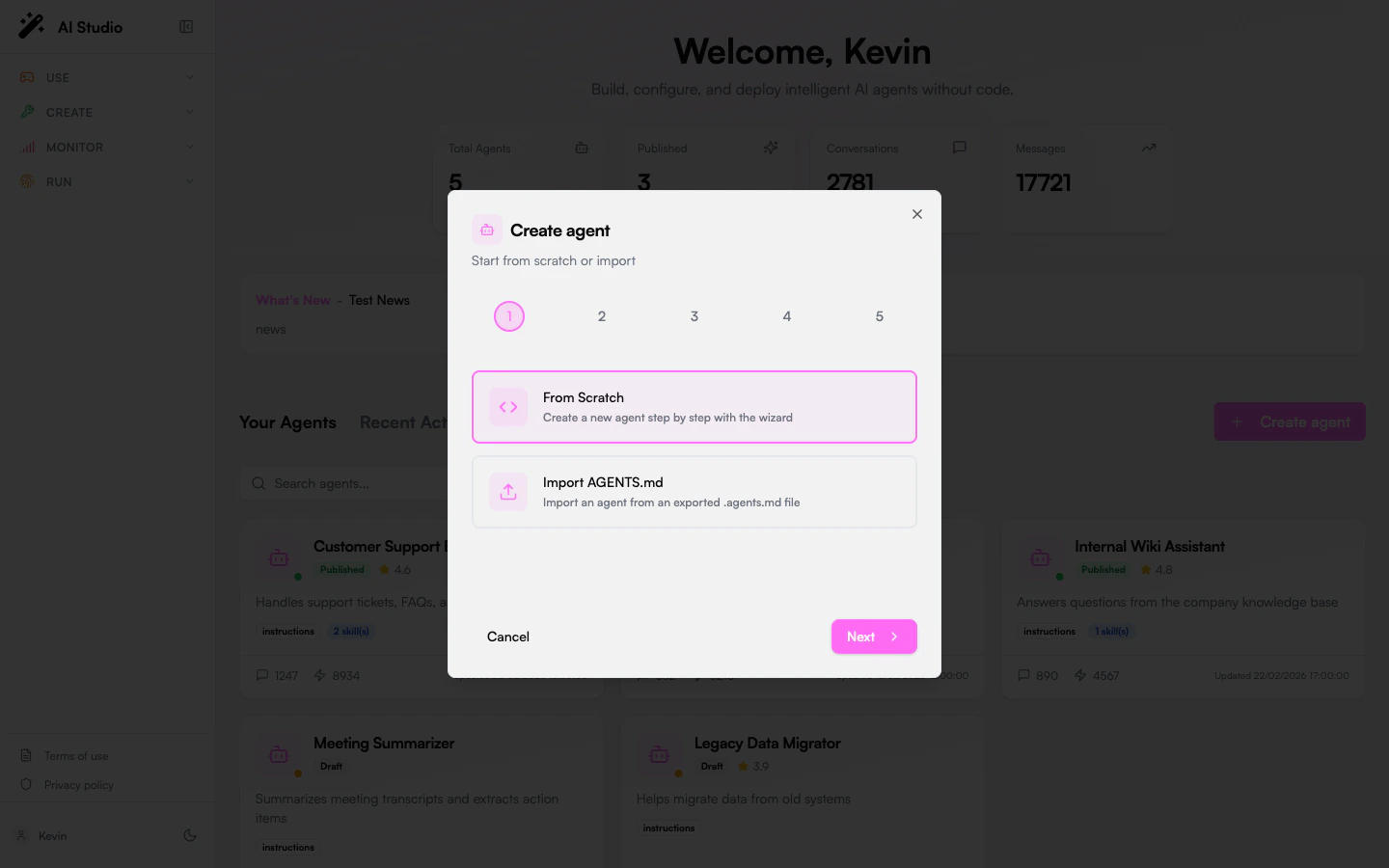 *The screenshot shows the agent creation wizard. Once your agent exists, attach a Knowledge Base from its capabilities/configuration view.*
## Step 5: Chat With Your Agent in the Playground
Time to try it.
On the agent's detail page, open the **Playground** tab.
Enter questions related to your documents and watch the agent respond.
Each response surfaces the document chunks that were pulled from the Knowledge Base to ground the answer. Use this to verify the agent's reasoning and catch retrieval issues early.
Source transparency is a first-class feature: every answer in the Playground (and in production) shows which chunks were used, so you can audit grounding without leaving the agent's page.
## Step 6: Evaluations (Test-Driven Building)
Evaluations live alongside the agent in Agent Creator, which keeps quality checks tied to the thing being tested.
On the agent's detail page, switch to the **Evaluate** tab.
Add a new evaluation suite for the agent.
Each test case pairs a **question** a user might ask with the **expected answer** the agent should produce.
Configure how often the suite runs (daily, weekly, on demand) and whether it should fire automatically after agent changes.
Execute the suite to evaluate the agent's current behavior.
Each result includes:
* **Prompt and Context**: the exact prompt and retrieved context used
* **Generated Response**: what the agent actually produced
* **Response Evaluation**: rating of response quality (poor, correct, good)
* **Context Evaluation**: rating of retrieved-context relevance and accuracy
Business experts can manually grade responses, context, and hallucinations. Re-run the suite after every meaningful change — instructions, model, retrieval parameters, chunking, or attached Knowledge Base — so regressions surface immediately.
## Step 7: Advanced Customization
Once the basics work, you can extend the system with custom logic that reacts to Knowledge Base activity. The pattern is the same in both cases: a Builder automation (or an external service) listens for platform events emitted by the Knowledge Base and runs your custom logic in response.
Open the **Builder** product (`/builder`) — Prisme.ai's no-code workspace for automations.
Create an automation whose `when` block subscribes to the Knowledge Base events you care about — for example, document add/update/delete or query events. See the [Automations reference](/products/ai-builder/automations) for the trigger syntax.
In the automation's `do` steps, run whatever processing you need — call out to a custom service, write to a Collection, post to Slack, or chain another agent. You can mix YAML instructions with Custom Code (Python or NodeJS) blocks.
Implement your custom processing as a service that exposes an HTTPS endpoint.
Create an automation in Builder that subscribes to the Knowledge Base events you care about, then `fetch`es your external service inside the automation. This keeps event subscription centralized in Builder and uses your service for the heavy lifting.
On your service, branch on the event payload received from the automation and run the appropriate handler.
## Step 8: Handling PII and Safety Controls
For sensitive content, route Knowledge Base events through your own safety layer.
Subscribe a Builder automation to Knowledge Base events (document ingest, query) and run PII detection inside that automation before sensitive content is stored or returned.
Decide whether to anonymize personal data based on your use case and compliance requirements.
Plug in organization-specific safety measures — content filters, allow/deny lists, audit logging — wherever they belong in the event flow.
## Step 9: Monitoring and Maintenance
Keep the agent healthy with the right monitoring surface for each concern.
For cross-agent analytics on real user conversations — adoption, topics, feedback, clusters — use the **Insights** product. See [Insights overview](/products/ai-insights/overview).
Open the **Analytics** tab on the agent itself for usage metrics specific to that agent (volume, latency, token consumption, response quality).
Use a Builder automation subscribed to Knowledge Base events to push alerts into Slack, Teams, or Jira when something goes wrong.
Refresh documents as content changes, retire stale sources, and keep connectors synced.
Use evaluations and analytics to drive iterative tuning — instructions, model, chunking, retrieval parameters.
## Best Practices for High-Performance RAG
To maximize the effectiveness of your RAG agent, consider these recommendations:
Design a well-organized structure for easy access and interpretation by AI systems
Ensure data is accurate, well-formatted, and relevant—this accounts for \~80% of success
Consider combining NLU for tag extraction with LLMs for generation to improve efficiency
Regularly monitor response times, accuracy, and retrieval effectiveness
## Wrapping Up
You've built a RAG agent without writing code: documents ingested into a Knowledge Base in **Knowledges**, an agent configured in **Agent Creator** that retrieves from that Knowledge Base, and a Playground plus Evaluations workflow for ongoing quality. The clean split between knowledge and agent makes it easy to evolve each side independently — swap models, refine instructions, or replace the Knowledge Base — without rebuilding the rest.
## Next Steps
Learn how to automatically classify and organize your documents with AI
Create an intelligent contact form that routes inquiries to the right department
Build advanced integrations between your RAG agent and other systems
Turn website content into a comprehensive knowledge base for your RAG agent
*The screenshot shows the agent creation wizard. Once your agent exists, attach a Knowledge Base from its capabilities/configuration view.*
## Step 5: Chat With Your Agent in the Playground
Time to try it.
On the agent's detail page, open the **Playground** tab.
Enter questions related to your documents and watch the agent respond.
Each response surfaces the document chunks that were pulled from the Knowledge Base to ground the answer. Use this to verify the agent's reasoning and catch retrieval issues early.
Source transparency is a first-class feature: every answer in the Playground (and in production) shows which chunks were used, so you can audit grounding without leaving the agent's page.
## Step 6: Evaluations (Test-Driven Building)
Evaluations live alongside the agent in Agent Creator, which keeps quality checks tied to the thing being tested.
On the agent's detail page, switch to the **Evaluate** tab.
Add a new evaluation suite for the agent.
Each test case pairs a **question** a user might ask with the **expected answer** the agent should produce.
Configure how often the suite runs (daily, weekly, on demand) and whether it should fire automatically after agent changes.
Execute the suite to evaluate the agent's current behavior.
Each result includes:
* **Prompt and Context**: the exact prompt and retrieved context used
* **Generated Response**: what the agent actually produced
* **Response Evaluation**: rating of response quality (poor, correct, good)
* **Context Evaluation**: rating of retrieved-context relevance and accuracy
Business experts can manually grade responses, context, and hallucinations. Re-run the suite after every meaningful change — instructions, model, retrieval parameters, chunking, or attached Knowledge Base — so regressions surface immediately.
## Step 7: Advanced Customization
Once the basics work, you can extend the system with custom logic that reacts to Knowledge Base activity. The pattern is the same in both cases: a Builder automation (or an external service) listens for platform events emitted by the Knowledge Base and runs your custom logic in response.
Open the **Builder** product (`/builder`) — Prisme.ai's no-code workspace for automations.
Create an automation whose `when` block subscribes to the Knowledge Base events you care about — for example, document add/update/delete or query events. See the [Automations reference](/products/ai-builder/automations) for the trigger syntax.
In the automation's `do` steps, run whatever processing you need — call out to a custom service, write to a Collection, post to Slack, or chain another agent. You can mix YAML instructions with Custom Code (Python or NodeJS) blocks.
Implement your custom processing as a service that exposes an HTTPS endpoint.
Create an automation in Builder that subscribes to the Knowledge Base events you care about, then `fetch`es your external service inside the automation. This keeps event subscription centralized in Builder and uses your service for the heavy lifting.
On your service, branch on the event payload received from the automation and run the appropriate handler.
## Step 8: Handling PII and Safety Controls
For sensitive content, route Knowledge Base events through your own safety layer.
Subscribe a Builder automation to Knowledge Base events (document ingest, query) and run PII detection inside that automation before sensitive content is stored or returned.
Decide whether to anonymize personal data based on your use case and compliance requirements.
Plug in organization-specific safety measures — content filters, allow/deny lists, audit logging — wherever they belong in the event flow.
## Step 9: Monitoring and Maintenance
Keep the agent healthy with the right monitoring surface for each concern.
For cross-agent analytics on real user conversations — adoption, topics, feedback, clusters — use the **Insights** product. See [Insights overview](/products/ai-insights/overview).
Open the **Analytics** tab on the agent itself for usage metrics specific to that agent (volume, latency, token consumption, response quality).
Use a Builder automation subscribed to Knowledge Base events to push alerts into Slack, Teams, or Jira when something goes wrong.
Refresh documents as content changes, retire stale sources, and keep connectors synced.
Use evaluations and analytics to drive iterative tuning — instructions, model, chunking, retrieval parameters.
## Best Practices for High-Performance RAG
To maximize the effectiveness of your RAG agent, consider these recommendations:
Design a well-organized structure for easy access and interpretation by AI systems
Ensure data is accurate, well-formatted, and relevant—this accounts for \~80% of success
Consider combining NLU for tag extraction with LLMs for generation to improve efficiency
Regularly monitor response times, accuracy, and retrieval effectiveness
## Wrapping Up
You've built a RAG agent without writing code: documents ingested into a Knowledge Base in **Knowledges**, an agent configured in **Agent Creator** that retrieves from that Knowledge Base, and a Playground plus Evaluations workflow for ongoing quality. The clean split between knowledge and agent makes it easy to evolve each side independently — swap models, refine instructions, or replace the Knowledge Base — without rebuilding the rest.
## Next Steps
Learn how to automatically classify and organize your documents with AI
Create an intelligent contact form that routes inquiries to the right department
Build advanced integrations between your RAG agent and other systems
Turn website content into a comprehensive knowledge base for your RAG agent