> ## Documentation Index
> Fetch the complete documentation index at: https://docs.prisme.ai/llms.txt
> Use this file to discover all available pages before exploring further.
# Confluence
> Feed a knowledge base from Confluence Cloud or Confluence Data Center, step by step: choose a mode, set up the connector, publish it, sync
This guide takes you from nothing to a knowledge base fed by your Confluence pages, on
**Confluence Cloud** (`*.atlassian.net`) or **Confluence Data Center** (installed on your
own servers). It is written for three people, who can be the same person:
* the **Confluence administrator**, who creates the account or token Prisme.ai reads with;
* the **Prisme.ai administrator** of your organization, who installs and publishes the connector;
* the **users** who create knowledge bases from Confluence.
The connector is the [Confluence app](/apps-store/marketplace/connectors/confluence). This
page only covers its use as a source for [Knowledges connectors](/products/ai-knowledge/connectors).
## 1. Choose your mode
Everything depends on one question: **whose Confluence rights decide what a reader sees?**
| | **Shared account** | **Personal account** |
| - | - | - |
| Principle | One Confluence account reads for the whole organization | Each user connects their own Confluence account |
| What readers see | Everything the shared account can read, for everyone | Only what their own Confluence rights allow |
| Scheduled sync | Yes | Cloud: yes. Data Center: **no**, manual only |
| What users have to do | Nothing | Connect their account once |
| Choose it when | The synced spaces may be read by everyone who queries the agent | Confluence permissions must be respected page by page |
Then pick the matching **Method** in the connector:
| Deployment | Shared account | Personal account |
| - | - | - |
| **Confluence Cloud** | *API token (email + token)* | *OAuth2 connection (platform client)* — recommended, or *OAuth2 per-user — your own Atlassian app* |
| **Confluence Data Center** | *Access token (direct)*, holding the Personal Access Token of a service account | *Personal Access Token (per user)* |
On Data Center, the personal mode cannot refresh a base on schedule: a Personal Access
Token can only be used by the person who stored it, and a scheduled run has no person
behind it. The owner of the base clicks **Sync Now** to update it. If you need both
individual rights and automatic updates on Data Center, there is no mode for it yet.
## 2. Prerequisites
### Confluence Cloud
* A Confluence Cloud site, `https://your-domain.atlassian.net`.
* **Shared account:** an Atlassian account with read access to the spaces to sync — and only
to those, since everything it reads becomes readable by the agent's users — plus an
[API token](https://id.atlassian.com/manage-profile/security/api-tokens) for that account.
* **Personal account, platform client:** nothing on your side; ask your Prisme.ai contact
whether the platform OAuth client is enabled on your instance.
* **Personal account, your own app:** an OAuth 2.0 (3LO) app in the
[Atlassian Developer Console](https://developer.atlassian.com/console/myapps/) with the
Confluence API and its granular scopes. See
[Confluence app prerequisites](/apps-store/marketplace/connectors/confluence#prerequisites-atlassian-side).
### Confluence Data Center
* Confluence Data Center with **Personal Access Tokens** enabled (validated on 9.2).
* **Reachable from the Internet by Prisme.ai.** Prisme.ai calls your Confluence directly;
an instance reachable only from your internal network will not work. The usual answers
are an HTTPS exposure filtered on Prisme.ai's outbound IP addresses, a reverse proxy or a
dedicated gateway. Ask your Prisme.ai contact for the addresses to allow.
* A **domain name**, not an IP address: private IP addresses are refused. For example
`https://confluence.example.com`, or `https://intranet.example.com/confluence` with a
context path.
* **Shared account:** a Confluence service account with read access to the spaces to sync,
and to them only.
### Prisme.ai
* Being an **owner or administrator of your organization** for step 5.4 (publishing).
* Building rights to create a workspace in **Builder**.
## 3. Create a Personal Access Token (Data Center only)
Done by the service account (shared mode) or by each user (personal mode).
Log in to Confluence with the account concerned, click your avatar at the top right,
then **Settings**.
Open **Personal Access Tokens** → **Create token**. Give it an explicit name
(*Prisme.ai*) and an expiry date that fits your security policy.
Confluence shows the token once. Keep it like a password; never send it by e-mail or chat.
On Cloud, the shared mode uses an **API token** instead, created at
[id.atlassian.com → Security → API tokens](https://id.atlassian.com/manage-profile/security/api-tokens);
the personal modes need no token at all, users sign in with Atlassian.
## 4. Install the connector (Prisme.ai administrator)
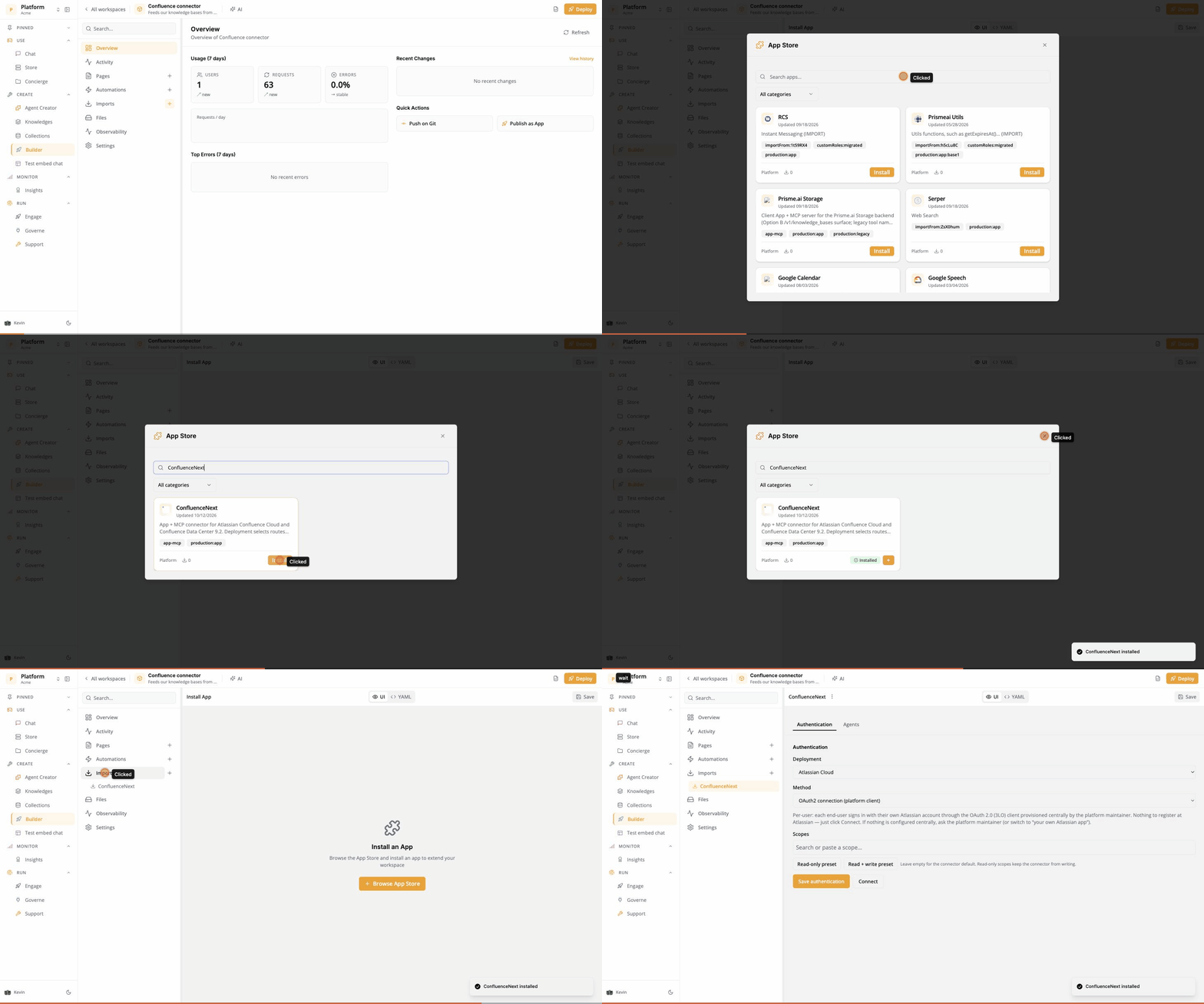
Open **Builder** and create a workspace for the connector, for example *Confluence connector*.
Its credentials and its members are what the connector answers for, so keep it dedicated.
In the workspace, open **Imports**, click **+**, search for **ConfluenceNext** and install it.
Click the new instance under **Imports**. The configuration screen has two tabs,
**Authentication** and **Agents**.
 ## 5. Configure the connector (Prisme.ai administrator)
### 5.1 Authentication
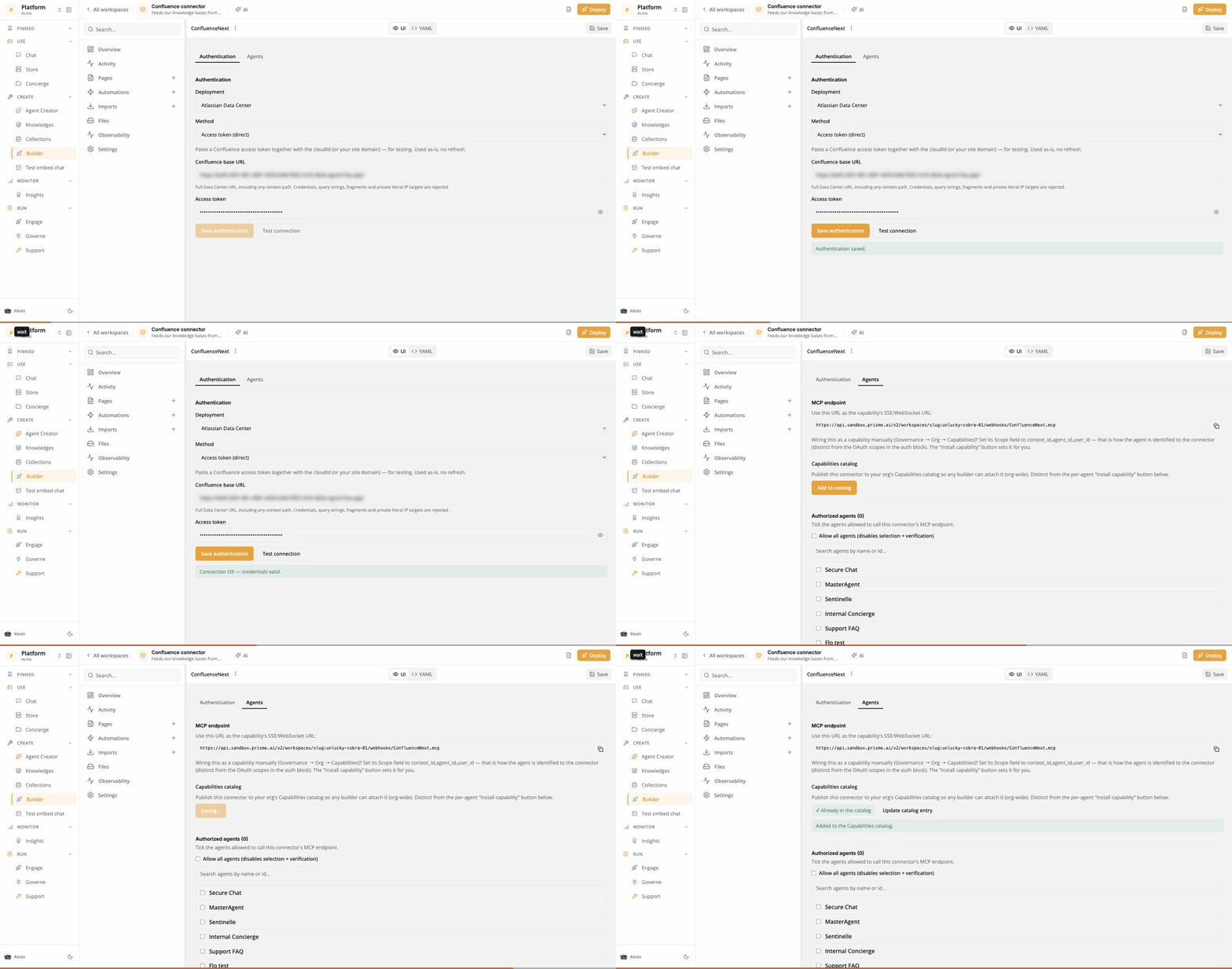
In the **Authentication** tab, choose the **Deployment**, then the **Method** from step 1,
and fill in its fields.
| Field | Value |
| - | - |
| **Deployment** | *Atlassian Data Center* |
| **Method** | *Access token (direct)* |
| **Confluence base URL** | Your Confluence address, e.g. `https://confluence.example.com` |
| **Access token** | The service account's Personal Access Token |
Click **Save authentication**, then **Test connection**: Confluence must accept the token.
| Field | Value |
| - | - |
| **Deployment** | *Atlassian Data Center* |
| **Method** | *Personal Access Token (per user)* |
| **Confluence base URL** | Your Confluence address, e.g. `https://confluence.example.com` |
There is no token to enter: each user will enter their own. Click **Save authentication**.
| Field | Value |
| - | - |
| **Deployment** | *Atlassian Cloud* |
| **Method** | *API token (email + token)* |
| **Email** | The shared Atlassian account |
| **API token** | Its API token |
| **Site** | `your-domain`, from `your-domain.atlassian.net` |
Click **Save authentication**, then **Test connection**.
| Field | Value |
| - | - |
| **Deployment** | *Atlassian Cloud* |
| **Method** | *OAuth2 connection (platform client)* |
| **Scopes** | Leave empty for the default scopes |
Click **Save authentication**. With *OAuth2 per-user — your own Atlassian app* instead,
also enter your app's **Client ID** and **Client secret**, and register the
**Callback URL** shown on screen in your Atlassian app.
The **Confluence base URL** starts with `https://`, includes the context path if your
Confluence has one, and contains no credentials, no `?…` and no `#…`.
### 5.2 Authorized agents (optional)
In the **Agents** tab, **Authorized agents** lists the agents allowed to use Confluence
**as a tool** (search, read a page on demand). Tick them, or **Allow all agents**.
This is not needed to feed a knowledge base: an agent that answers from the base never
calls Confluence itself.
### 5.3 Give users access to the workspace
Share the connector's workspace, **read** access is enough, with the users who will create
Confluence knowledge bases. Browsing Confluence from Knowledges goes through this
workspace, and is refused to anyone who has no role on it. In a personal mode, share it
also with the users who query the agents, since their own rights are checked through it.
### 5.4 Publish the connector to your organization
Still in the **Agents** tab, under **Capabilities catalog**, click **Add to catalog**.
The connector becomes available to your whole organization, in **Knowledges → Connectors**
and in the capability catalog of Agent Creator.
The button is only shown to organization owners and administrators. After a change of
method, click **Update catalog entry** so the catalog follows: the personal modes add the
*Connect* step that users go through in step 6.
## 5. Configure the connector (Prisme.ai administrator)
### 5.1 Authentication
In the **Authentication** tab, choose the **Deployment**, then the **Method** from step 1,
and fill in its fields.
| Field | Value |
| - | - |
| **Deployment** | *Atlassian Data Center* |
| **Method** | *Access token (direct)* |
| **Confluence base URL** | Your Confluence address, e.g. `https://confluence.example.com` |
| **Access token** | The service account's Personal Access Token |
Click **Save authentication**, then **Test connection**: Confluence must accept the token.
| Field | Value |
| - | - |
| **Deployment** | *Atlassian Data Center* |
| **Method** | *Personal Access Token (per user)* |
| **Confluence base URL** | Your Confluence address, e.g. `https://confluence.example.com` |
There is no token to enter: each user will enter their own. Click **Save authentication**.
| Field | Value |
| - | - |
| **Deployment** | *Atlassian Cloud* |
| **Method** | *API token (email + token)* |
| **Email** | The shared Atlassian account |
| **API token** | Its API token |
| **Site** | `your-domain`, from `your-domain.atlassian.net` |
Click **Save authentication**, then **Test connection**.
| Field | Value |
| - | - |
| **Deployment** | *Atlassian Cloud* |
| **Method** | *OAuth2 connection (platform client)* |
| **Scopes** | Leave empty for the default scopes |
Click **Save authentication**. With *OAuth2 per-user — your own Atlassian app* instead,
also enter your app's **Client ID** and **Client secret**, and register the
**Callback URL** shown on screen in your Atlassian app.
The **Confluence base URL** starts with `https://`, includes the context path if your
Confluence has one, and contains no credentials, no `?…` and no `#…`.
### 5.2 Authorized agents (optional)
In the **Agents** tab, **Authorized agents** lists the agents allowed to use Confluence
**as a tool** (search, read a page on demand). Tick them, or **Allow all agents**.
This is not needed to feed a knowledge base: an agent that answers from the base never
calls Confluence itself.
### 5.3 Give users access to the workspace
Share the connector's workspace, **read** access is enough, with the users who will create
Confluence knowledge bases. Browsing Confluence from Knowledges goes through this
workspace, and is refused to anyone who has no role on it. In a personal mode, share it
also with the users who query the agents, since their own rights are checked through it.
### 5.4 Publish the connector to your organization
Still in the **Agents** tab, under **Capabilities catalog**, click **Add to catalog**.
The connector becomes available to your whole organization, in **Knowledges → Connectors**
and in the capability catalog of Agent Creator.
The button is only shown to organization owners and administrators. After a change of
method, click **Update catalog entry** so the catalog follows: the personal modes add the
*Connect* step that users go through in step 6.
 ## 6. Create the knowledge base (users)
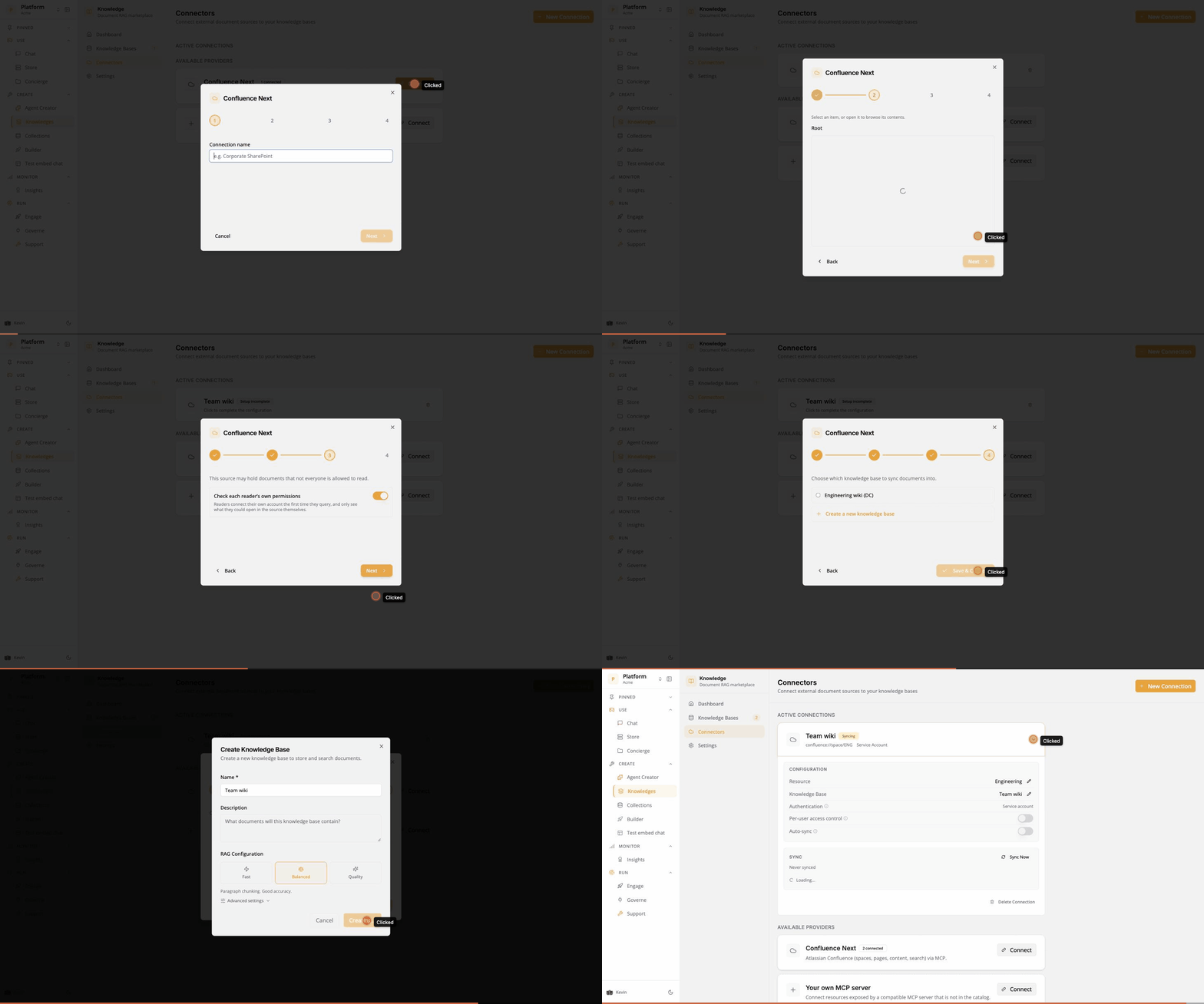
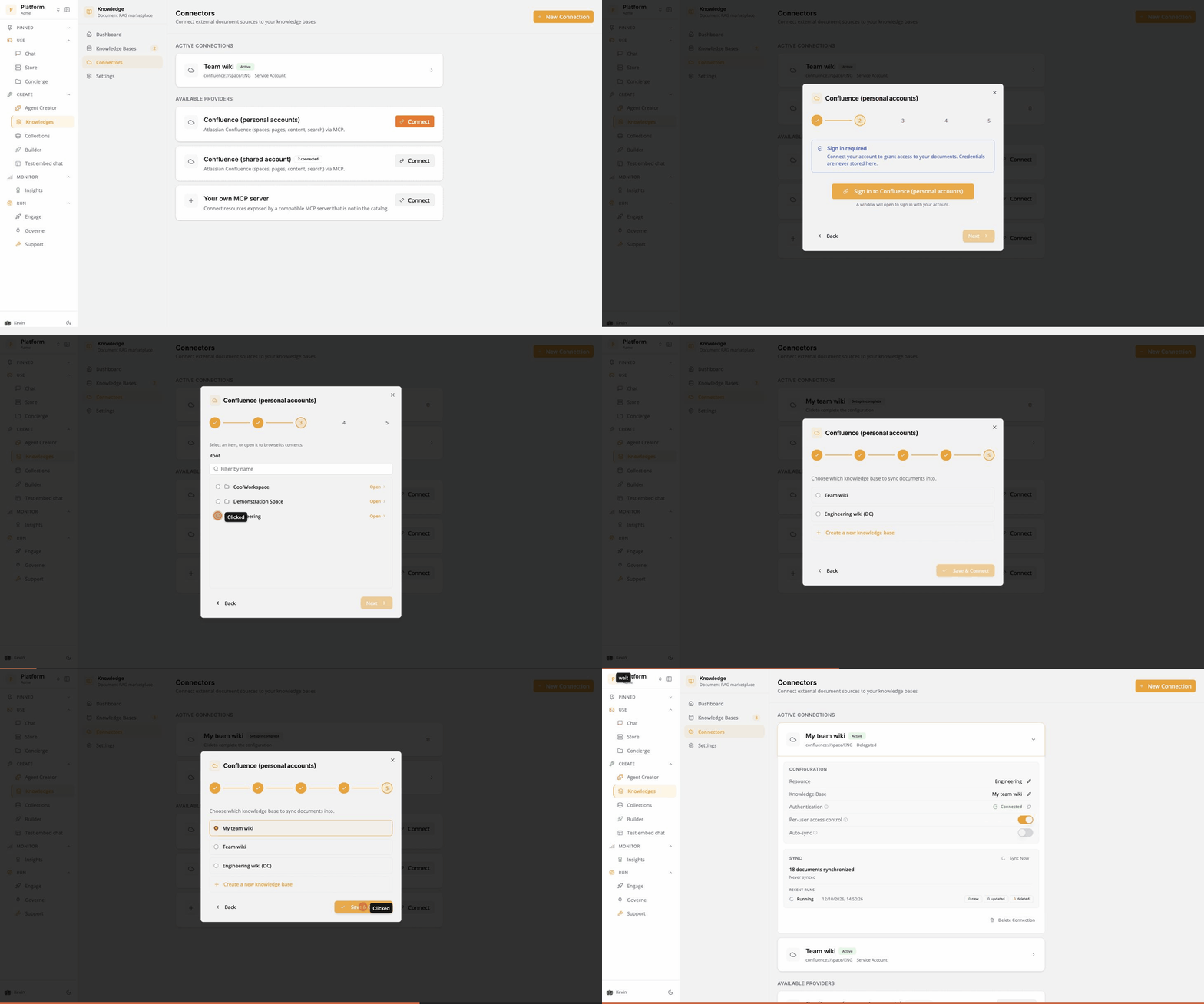
Open **Knowledges → Connectors**. Under **Available Providers**, click **Connect** on
the Confluence connector, then name the connection.
* **Cloud:** sign in with your Atlassian account and grant access in the window that opens.
* **Data Center:** the **Connect Confluence Data Center** window opens. Paste your
Personal Access Token from step 3 and click **Connect**. Confluence checks the token
before it is stored; if it is refused, a token you stored earlier is kept.
In a shared mode there is no such step: the wizard goes straight to the source, and the
connection reads *Service account* under **Authentication**.
Your spaces are listed by name. Tick the one to sync, then **Use this location**. For
several spaces, create one connection per space.
**Check each reader's own permissions** is on by default.
* **Shared account:** turn it **off**. A shared account cannot tell what each reader may
open, and readers have no account of their own to connect.
* **Personal account:** leave it **on**. It is what guarantees each reader only sees
pages they can open in Confluence.
Pick an existing base or **Create a new knowledge base**, then **Save & Connect**.
The first synchronization starts right away.
## 6. Create the knowledge base (users)
Open **Knowledges → Connectors**. Under **Available Providers**, click **Connect** on
the Confluence connector, then name the connection.
* **Cloud:** sign in with your Atlassian account and grant access in the window that opens.
* **Data Center:** the **Connect Confluence Data Center** window opens. Paste your
Personal Access Token from step 3 and click **Connect**. Confluence checks the token
before it is stored; if it is refused, a token you stored earlier is kept.
In a shared mode there is no such step: the wizard goes straight to the source, and the
connection reads *Service account* under **Authentication**.
Your spaces are listed by name. Tick the one to sync, then **Use this location**. For
several spaces, create one connection per space.
**Check each reader's own permissions** is on by default.
* **Shared account:** turn it **off**. A shared account cannot tell what each reader may
open, and readers have no account of their own to connect.
* **Personal account:** leave it **on**. It is what guarantees each reader only sees
pages they can open in Confluence.
Pick an existing base or **Create a new knowledge base**, then **Save & Connect**.
The first synchronization starts right away.
 ### Keep it up to date
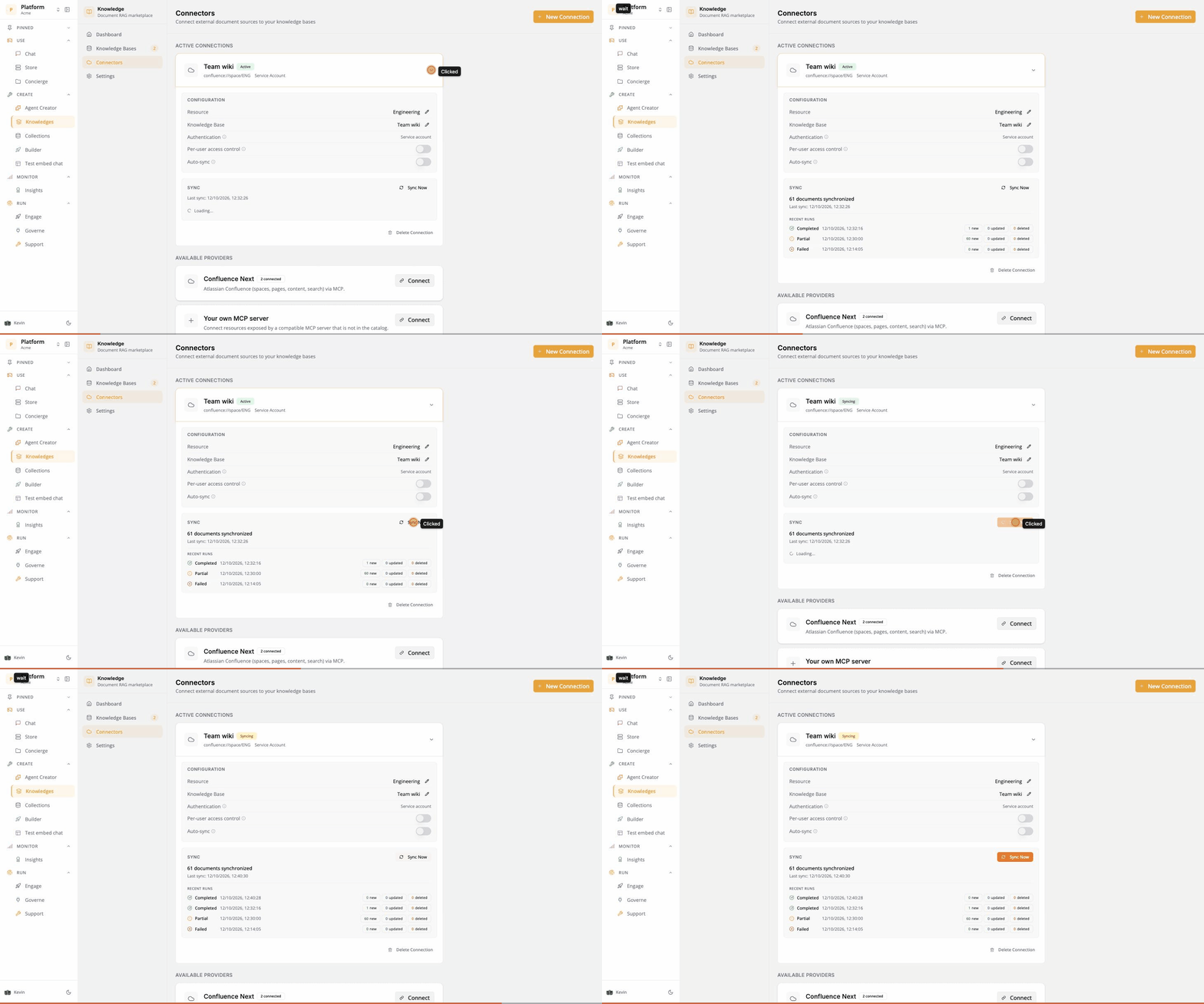
Click the connection in **Knowledges → Connectors** to open its configuration.
* **Shared account, and Cloud personal account:** turn on **Auto-sync** and pick a frequency.
* **Data Center personal account:** leave **Auto-sync** off and click **Sync Now** whenever
you want the base refreshed; scheduled runs would fail.
### Keep it up to date
Click the connection in **Knowledges → Connectors** to open its configuration.
* **Shared account, and Cloud personal account:** turn on **Auto-sync** and pick a frequency.
* **Data Center personal account:** leave **Auto-sync** off and click **Sync Now** whenever
you want the base refreshed; scheduled runs would fail.
 Each user who queries an agent in a personal mode must have connected their own account
once (Data Center: their own Personal Access Token). Until then, Confluence pages are not
returned to them and they are invited to connect.
## 7. Check that it works
| Check | Expected |
| - | - |
| Browse the source in the wizard | Your spaces appear by name |
| Open a large space | All its pages are listed, beyond the first 50 |
| First sync | The number of documents matches the pages of the space |
| Second sync, nothing changed in Confluence | Fast, nothing is re-indexed |
| Ask an agent linked to the base | The answer cites a Confluence page |
| Personal mode: a reader without rights on a page | That page never appears in their answers |
## 8. Troubleshooting
| Symptom | Likely cause | Fix |
| - | - | - |
| The connector does not appear in **Knowledges → Connectors** | Not published to your organization | Step 5.4 |
| Browsing the spaces fails | No role on the connector's workspace | Step 5.3 |
| The base stays empty, or the agent never cites Confluence (shared mode) | Per-reader access control is on | Turn **Per-user access control** off on the connection |
| *Invalid Confluence Data Center baseUrl* | Malformed address | `https://domain[/context]`, no private IP, credentials, `?` or `#` |
| **Test connection** fails | Token invalid or expired, or Confluence unreachable from the Internet | Create a new token; have your IT check the network access |
| *Confluence rejected this Personal Access Token* | Wrong or expired token | Create a new one and **Connect** again |
| *Confluence Data Center is not connected for this user* | The user never stored a token | They click **Connect** and enter their token |
| An expected space is missing | The account cannot read it | Grant it read access in Confluence |
| A personal space (`~name`) is missing | Not supported | Use team spaces |
| It worked, then stopped (personal mode) | The user's token expired | New token, then **Connect** again |
| Scheduled runs fail (Data Center personal mode) | Not possible in this mode | Turn **Auto-sync** off and use **Sync Now** |
## 9. Security
* Tokens are stored encrypted and never displayed again.
* In personal mode, a user's token can be used only by that user, not by administrators or
other users.
* In shared mode, everything the shared account can read becomes readable by the agent's
users. Restrict its rights to the spaces you sync.
* To revoke access, delete the token in Confluence (or the API token at Atlassian) and, in
personal mode, click **Disconnect** in Prisme.ai.
* Mind token expiry dates: when a token expires, the sync (shared mode) or the user's access
(personal mode) stops until a new one is entered.
## 10. Known limits
* Personal spaces are not supported; team spaces are.
* Only pages are indexed, as text. Attachments and comments are not.
* Data Center personal mode: no scheduled sync.
* No OAuth2 sign-in to Confluence Data Center yet. It is the mode that would combine
individual rights and scheduled sync.
This documentation is built and hosted on [Mintlify](https://mintlify.com), a developer documentation platform.
Each user who queries an agent in a personal mode must have connected their own account
once (Data Center: their own Personal Access Token). Until then, Confluence pages are not
returned to them and they are invited to connect.
## 7. Check that it works
| Check | Expected |
| - | - |
| Browse the source in the wizard | Your spaces appear by name |
| Open a large space | All its pages are listed, beyond the first 50 |
| First sync | The number of documents matches the pages of the space |
| Second sync, nothing changed in Confluence | Fast, nothing is re-indexed |
| Ask an agent linked to the base | The answer cites a Confluence page |
| Personal mode: a reader without rights on a page | That page never appears in their answers |
## 8. Troubleshooting
| Symptom | Likely cause | Fix |
| - | - | - |
| The connector does not appear in **Knowledges → Connectors** | Not published to your organization | Step 5.4 |
| Browsing the spaces fails | No role on the connector's workspace | Step 5.3 |
| The base stays empty, or the agent never cites Confluence (shared mode) | Per-reader access control is on | Turn **Per-user access control** off on the connection |
| *Invalid Confluence Data Center baseUrl* | Malformed address | `https://domain[/context]`, no private IP, credentials, `?` or `#` |
| **Test connection** fails | Token invalid or expired, or Confluence unreachable from the Internet | Create a new token; have your IT check the network access |
| *Confluence rejected this Personal Access Token* | Wrong or expired token | Create a new one and **Connect** again |
| *Confluence Data Center is not connected for this user* | The user never stored a token | They click **Connect** and enter their token |
| An expected space is missing | The account cannot read it | Grant it read access in Confluence |
| A personal space (`~name`) is missing | Not supported | Use team spaces |
| It worked, then stopped (personal mode) | The user's token expired | New token, then **Connect** again |
| Scheduled runs fail (Data Center personal mode) | Not possible in this mode | Turn **Auto-sync** off and use **Sync Now** |
## 9. Security
* Tokens are stored encrypted and never displayed again.
* In personal mode, a user's token can be used only by that user, not by administrators or
other users.
* In shared mode, everything the shared account can read becomes readable by the agent's
users. Restrict its rights to the spaces you sync.
* To revoke access, delete the token in Confluence (or the API token at Atlassian) and, in
personal mode, click **Disconnect** in Prisme.ai.
* Mind token expiry dates: when a token expires, the sync (shared mode) or the user's access
(personal mode) stops until a new one is entered.
## 10. Known limits
* Personal spaces are not supported; team spaces are.
* Only pages are indexed, as text. Attachments and comments are not.
* Data Center personal mode: no scheduled sync.
* No OAuth2 sign-in to Confluence Data Center yet. It is the mode that would combine
individual rights and scheduled sync.
This documentation is built and hosted on [Mintlify](https://mintlify.com), a developer documentation platform.