> ## Documentation Index
> Fetch the complete documentation index at: https://docs.prisme.ai/llms.txt
> Use this file to discover all available pages before exploring further.
# Overview
> Insights is the analytics and quality layer for the agents you build on Prisme.ai.
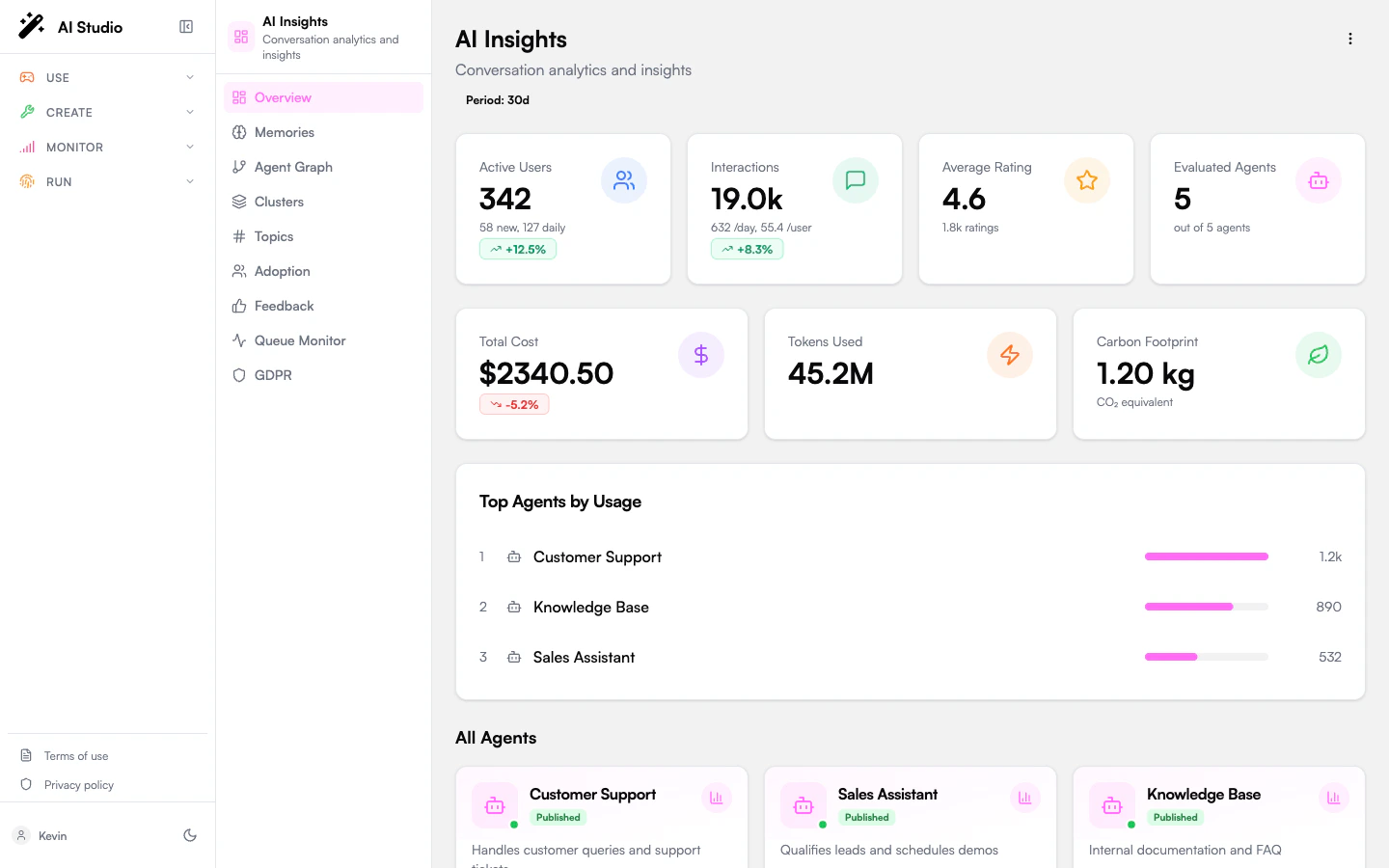 Insights tells you what your agents are doing, how well they're doing it, and where they're falling short. It pulls every conversation that runs through Agent Creator (and other connected products), evaluates them against criteria you define, and rolls the results up into dashboards you can act on.
You don't configure ingestion. As soon as an agent has conversations, Insights picks them up.
## Video Tour: Insights
This video is currently available in French.
## What you can do
KPIs for users, interactions, ratings, cost, tokens and carbon, plus a ranked list of your top agents.
Per-agent score, resolution rate, sentiment mix, and the most recent insights.
Author Yes/No, score, or category criteria with weights — applied automatically to every analyzed conversation.
Per-conversation summary, sentiment progression, key moments, and your custom evaluations.
Likes, dislikes, dislike categories, and recent comments — globally or per agent.
Power / Regular / Basic user segments, personalization depth, and AI-generated recommendations.
What your agents are learning about users, what topics are trending, and where memory gaps exist.
Interactive network of agents, tools, and categories, with similarity-based clusters.
Export or permanently delete a user's conversations, insights, and memories — Article 15 and 17.
## Two views: organization and agent
Insights has two navigation contexts. The sidebar swaps depending on whether you're looking at the whole org or a single agent.
Open Insights and you land here. The sidebar shows cross-agent analytics: **Overview**, **Memories**, **Agent Graph**, **Clusters**, **Topics**, **Adoption**, **Feedback**, **Queue Monitor**, **GDPR**.
Use it to compare agents, watch fleet-wide trends, and run platform operations.
Click any agent (from the dashboard or the graph) to enter its scoped workspace. The sidebar swaps to: **Overview**, **Conversations**, **Insights**, **Criteria**, **Feedback**.
Use it to evaluate one agent, browse and analyze its conversations, define how it's scored, and read the per-conversation results. The "← all agents" button returns you to the organization view.
## Core concepts
A conversation is the unit of analysis. Insights asks an LLM to read each conversation, then produces an **insight**: a numeric evaluation score (0–100), a resolution flag, an overall sentiment with progression, the topics discussed, key moments, and your custom criterion answers.
Analysis can run automatically (batch on inactivity, real-time where enabled) or on demand from the **Conversations** page.
Criteria are the questions the LLM answers about each conversation. You define them per agent. Three types are supported: **Yes/No**, **Score** (numeric range), **Category** (multiple choice). Each carries a weight that contributes to the agent's evaluation score.
If you don't define any, four defaults apply: `resolution` (Yes/No), `clarity` (1–5), `accuracy` (1–5), `sentiment` (positive / neutral / negative).
When an agent has memory enabled, Insights aggregates what it stores: **facts**, **preferences**, **relationships**, **instructions**. The Memories page shows volume, type breakdown, and the gaps where users are asking about topics the agent doesn't know yet. Topics groups memories by subject and shows trending up/down.
Users are bucketed into **Power**, **Regular**, **Basic** based on usage. Adoption combines that segmentation with personalization depth (memories per user), quality scores, sentiment, and the patterns users converge on — plus AI-generated recommendations to grow each segment.
The Graph visualizes how agents relate to one another via shared tools, shared categories, similarity, and delegation edges. The Clusters page formalizes that into similarity-based groupings, plus a list of isolated agents that don't fit anywhere — usually a hint that they should be merged or reframed.
Analysis runs through a managed queue with rate limits and a daily budget. Operators can watch the queue depth and throughput on the **Queue Monitor** page. Retention windows and anonymization horizons are configured at the workspace level. The **GDPR** page lets data controllers export or hard-delete a single user's footprint across conversations, insights, agents, shares, and ratings.
## What gets analyzed automatically
By default, Insights runs a batch analysis pass that evaluates conversations once they go inactive — typically after a couple of hours of silence and a minimum number of messages. Conversations that grow significantly after analysis are re-evaluated.
You can also analyze on demand: open a conversation, click **Analyze**, or batch-select rows from the **Conversations** list and click **Analyze Selected**.
## Where to go next
First-time access and a five-minute walkthrough.
Tell the LLM exactly how to score your agent's conversations.
Insights tells you what your agents are doing, how well they're doing it, and where they're falling short. It pulls every conversation that runs through Agent Creator (and other connected products), evaluates them against criteria you define, and rolls the results up into dashboards you can act on.
You don't configure ingestion. As soon as an agent has conversations, Insights picks them up.
## Video Tour: Insights
This video is currently available in French.
## What you can do
KPIs for users, interactions, ratings, cost, tokens and carbon, plus a ranked list of your top agents.
Per-agent score, resolution rate, sentiment mix, and the most recent insights.
Author Yes/No, score, or category criteria with weights — applied automatically to every analyzed conversation.
Per-conversation summary, sentiment progression, key moments, and your custom evaluations.
Likes, dislikes, dislike categories, and recent comments — globally or per agent.
Power / Regular / Basic user segments, personalization depth, and AI-generated recommendations.
What your agents are learning about users, what topics are trending, and where memory gaps exist.
Interactive network of agents, tools, and categories, with similarity-based clusters.
Export or permanently delete a user's conversations, insights, and memories — Article 15 and 17.
## Two views: organization and agent
Insights has two navigation contexts. The sidebar swaps depending on whether you're looking at the whole org or a single agent.
Open Insights and you land here. The sidebar shows cross-agent analytics: **Overview**, **Memories**, **Agent Graph**, **Clusters**, **Topics**, **Adoption**, **Feedback**, **Queue Monitor**, **GDPR**.
Use it to compare agents, watch fleet-wide trends, and run platform operations.
Click any agent (from the dashboard or the graph) to enter its scoped workspace. The sidebar swaps to: **Overview**, **Conversations**, **Insights**, **Criteria**, **Feedback**.
Use it to evaluate one agent, browse and analyze its conversations, define how it's scored, and read the per-conversation results. The "← all agents" button returns you to the organization view.
## Core concepts
A conversation is the unit of analysis. Insights asks an LLM to read each conversation, then produces an **insight**: a numeric evaluation score (0–100), a resolution flag, an overall sentiment with progression, the topics discussed, key moments, and your custom criterion answers.
Analysis can run automatically (batch on inactivity, real-time where enabled) or on demand from the **Conversations** page.
Criteria are the questions the LLM answers about each conversation. You define them per agent. Three types are supported: **Yes/No**, **Score** (numeric range), **Category** (multiple choice). Each carries a weight that contributes to the agent's evaluation score.
If you don't define any, four defaults apply: `resolution` (Yes/No), `clarity` (1–5), `accuracy` (1–5), `sentiment` (positive / neutral / negative).
When an agent has memory enabled, Insights aggregates what it stores: **facts**, **preferences**, **relationships**, **instructions**. The Memories page shows volume, type breakdown, and the gaps where users are asking about topics the agent doesn't know yet. Topics groups memories by subject and shows trending up/down.
Users are bucketed into **Power**, **Regular**, **Basic** based on usage. Adoption combines that segmentation with personalization depth (memories per user), quality scores, sentiment, and the patterns users converge on — plus AI-generated recommendations to grow each segment.
The Graph visualizes how agents relate to one another via shared tools, shared categories, similarity, and delegation edges. The Clusters page formalizes that into similarity-based groupings, plus a list of isolated agents that don't fit anywhere — usually a hint that they should be merged or reframed.
Analysis runs through a managed queue with rate limits and a daily budget. Operators can watch the queue depth and throughput on the **Queue Monitor** page. Retention windows and anonymization horizons are configured at the workspace level. The **GDPR** page lets data controllers export or hard-delete a single user's footprint across conversations, insights, agents, shares, and ratings.
## What gets analyzed automatically
By default, Insights runs a batch analysis pass that evaluates conversations once they go inactive — typically after a couple of hours of silence and a minimum number of messages. Conversations that grow significantly after analysis are re-evaluated.
You can also analyze on demand: open a conversation, click **Analyze**, or batch-select rows from the **Conversations** list and click **Analyze Selected**.
## Where to go next
First-time access and a five-minute walkthrough.
Tell the LLM exactly how to score your agent's conversations.