> ## Documentation Index
> Fetch the complete documentation index at: https://docs.prisme.ai/llms.txt
> Use this file to discover all available pages before exploring further.
# Data Retention
> Set how long conversations, documents, tasks, and artifacts are kept, within your plan cap
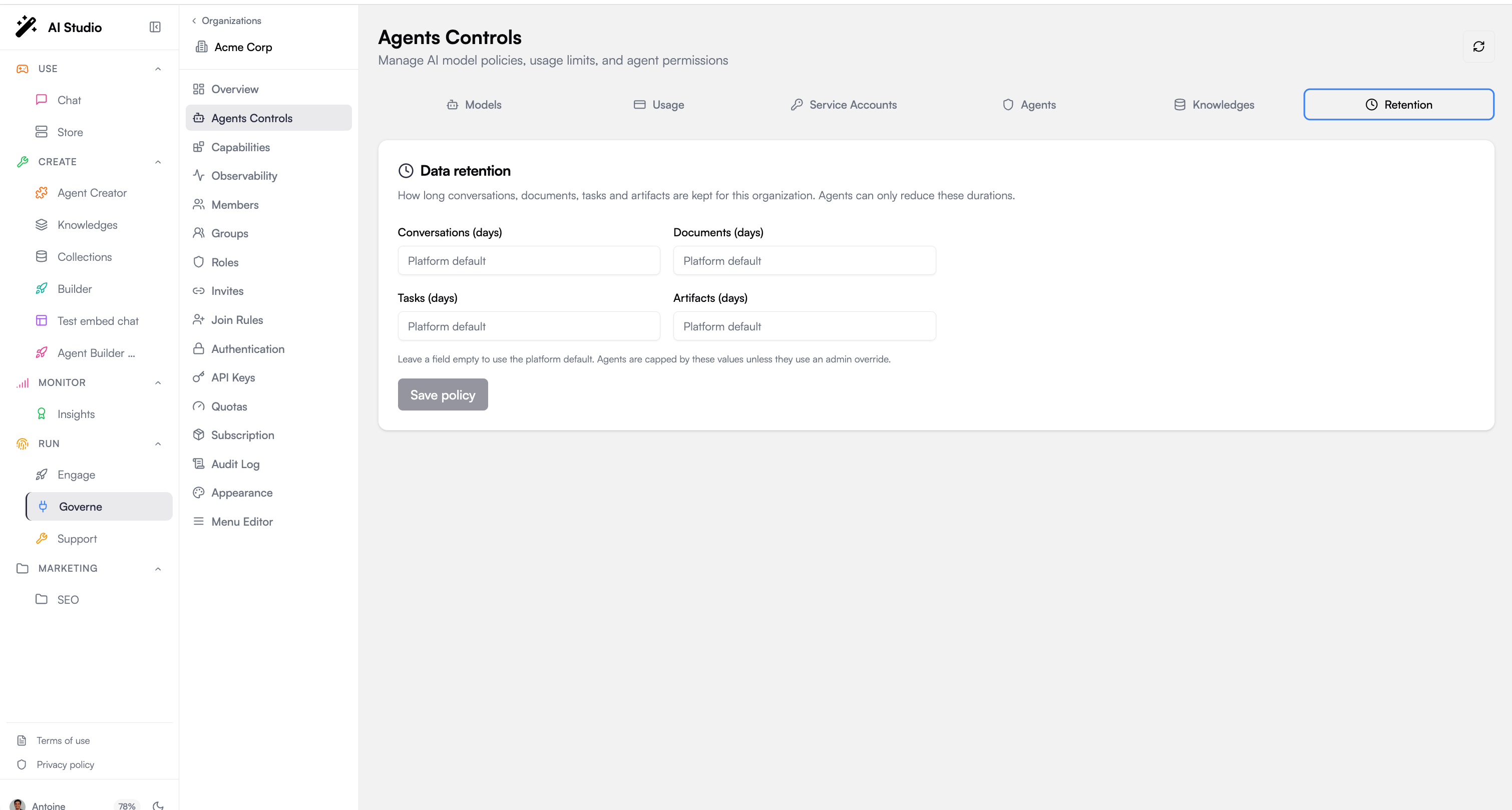 Data left in place forever is a liability, and the **Retention** tab is where you set how long each category of agent data lives before it is purged. Open it from **Agents Controls > Retention** in the Governance sidebar. This is an organization-level policy: it applies across every agent in the org unless an individual agent overrides it.
This data-retention policy governs operational agent data (conversations, documents, tasks, artifacts). It is distinct from the subscription-tier **audit log retention** covered in [Audit Logs](./audit-subscriptions), which controls how long administrative activity logs are kept.
## Retention categories
You can set an independent retention period, in days, for each of four categories:
| Category | What it covers |
| ----------------- | --------------------------------------- |
| **Conversations** | Chat threads between users and agents |
| **Documents** | Documents ingested into agent knowledge |
| **Tasks** | Agent task records |
| **Artifacts** | Files and outputs produced by agents |
Each field takes a number of days. Leaving a field empty means no org-level value is set for that category, so resolution falls back to the platform default (shown as a placeholder in the field).
## The plan cap
Your subscription plan defines a maximum retention window (`plan_max_days`). The tab shows this cap as a badge, and each field is limited to it. If you enter a value above the cap, the save is rejected with a message telling you the maximum allowed. The backend enforces the same cap, so a value can never exceed what your plan permits.
## Three-stage resolution
The effective retention applied to any given piece of data is resolved through three stages, from most general to most specific:
1. **Platform default** : the baseline set by the platform, used when neither the org nor the agent specifies a value.
2. **Organization** : the value you set here in the Retention tab. It overrides the platform default for every agent in the org.
3. **Agent override** : a per-agent value that overrides the org value for that agent only.
The most specific stage that has a value wins. A category with no org value and no agent override falls back to the platform default.
## Agent-level overrides
Per-agent retention overrides are **not** set here. They are configured in the **Agent Creator**, per agent. When one or more agents in the org carry their own retention override, the Retention tab lists them read-only so you can see which agents deviate from the org policy without leaving Governance. To change an agent's override, open that agent in the Agent Creator.
## Saving changes
1. Go to **Agents Controls > Retention**.
2. Enter a number of days for each category you want to control, or leave a field empty to fall back to the platform default.
3. Keep each value at or below the plan cap shown in the badge.
4. Click **Save**.
Retention is enforced by the agent-factory backend. Changes apply to the whole organization and take effect for data purged after the policy is saved.
## Next steps
Control model access, agents, and knowledge storage
Subscription-tier audit log retention
Data left in place forever is a liability, and the **Retention** tab is where you set how long each category of agent data lives before it is purged. Open it from **Agents Controls > Retention** in the Governance sidebar. This is an organization-level policy: it applies across every agent in the org unless an individual agent overrides it.
This data-retention policy governs operational agent data (conversations, documents, tasks, artifacts). It is distinct from the subscription-tier **audit log retention** covered in [Audit Logs](./audit-subscriptions), which controls how long administrative activity logs are kept.
## Retention categories
You can set an independent retention period, in days, for each of four categories:
| Category | What it covers |
| ----------------- | --------------------------------------- |
| **Conversations** | Chat threads between users and agents |
| **Documents** | Documents ingested into agent knowledge |
| **Tasks** | Agent task records |
| **Artifacts** | Files and outputs produced by agents |
Each field takes a number of days. Leaving a field empty means no org-level value is set for that category, so resolution falls back to the platform default (shown as a placeholder in the field).
## The plan cap
Your subscription plan defines a maximum retention window (`plan_max_days`). The tab shows this cap as a badge, and each field is limited to it. If you enter a value above the cap, the save is rejected with a message telling you the maximum allowed. The backend enforces the same cap, so a value can never exceed what your plan permits.
## Three-stage resolution
The effective retention applied to any given piece of data is resolved through three stages, from most general to most specific:
1. **Platform default** : the baseline set by the platform, used when neither the org nor the agent specifies a value.
2. **Organization** : the value you set here in the Retention tab. It overrides the platform default for every agent in the org.
3. **Agent override** : a per-agent value that overrides the org value for that agent only.
The most specific stage that has a value wins. A category with no org value and no agent override falls back to the platform default.
## Agent-level overrides
Per-agent retention overrides are **not** set here. They are configured in the **Agent Creator**, per agent. When one or more agents in the org carry their own retention override, the Retention tab lists them read-only so you can see which agents deviate from the org policy without leaving Governance. To change an agent's override, open that agent in the Agent Creator.
## Saving changes
1. Go to **Agents Controls > Retention**.
2. Enter a number of days for each category you want to control, or leave a field empty to fall back to the platform default.
3. Keep each value at or below the plan cap shown in the badge.
4. Click **Save**.
Retention is enforced by the agent-factory backend. Changes apply to the whole organization and take effect for data purged after the policy is saved.
## Next steps
Control model access, agents, and knowledge storage
Subscription-tier audit log retention