> ## Documentation Index
> Fetch the complete documentation index at: https://docs.prisme.ai/llms.txt
> Use this file to discover all available pages before exploring further.
# Announcements
> Create, edit, target, and publish rich, localized announcements to reach the right users across your platform
Announcements are the heart of [Engage](./overview). This is where you author a message, decide who should see it, and publish it so it surfaces as an in-platform [notification](./notifications) for the right people.
 ## The announcements list
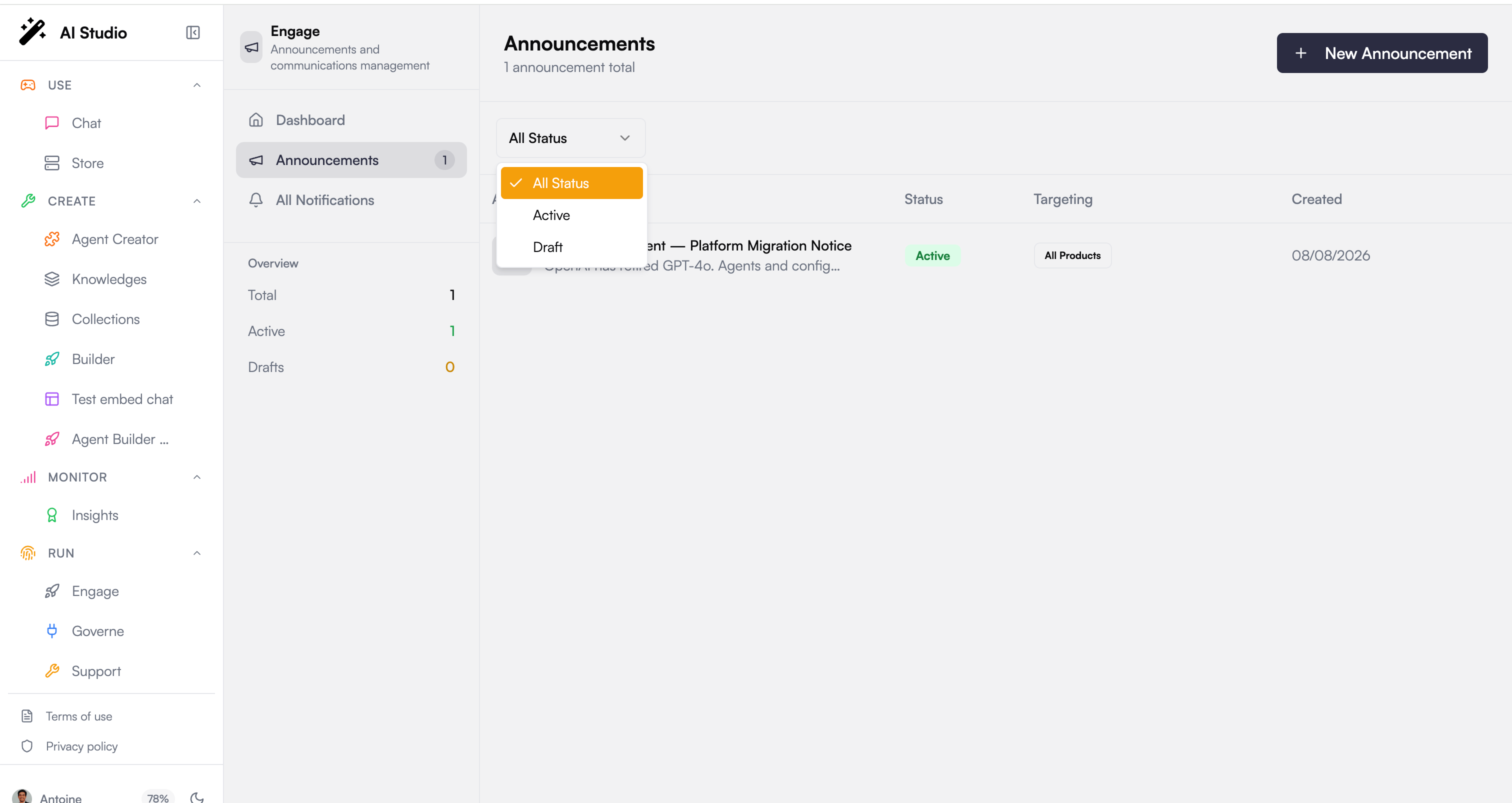
The list shows every announcement in your organization with its icon, title, summary, status, targeting summary, and creation date. From here you can:
* **Filter by status** to show all announcements, only **Active** ones, or only **Drafts**.
* **Edit** an announcement from its row menu.
* **Delete** an announcement (a confirmation dialog protects against accidental removal).
* Create a new announcement with **New Announcement**.
## Creating and editing an announcement
Whether you start fresh or open an existing one, you work in the same form. The form validates that a title and a summary are present before you can save.
## The announcements list
The list shows every announcement in your organization with its icon, title, summary, status, targeting summary, and creation date. From here you can:
* **Filter by status** to show all announcements, only **Active** ones, or only **Drafts**.
* **Edit** an announcement from its row menu.
* **Delete** an announcement (a confirmation dialog protects against accidental removal).
* Create a new announcement with **New Announcement**.
## Creating and editing an announcement
Whether you start fresh or open an existing one, you work in the same form. The form validates that a title and a summary are present before you can save.
 ### Title, summary, and content
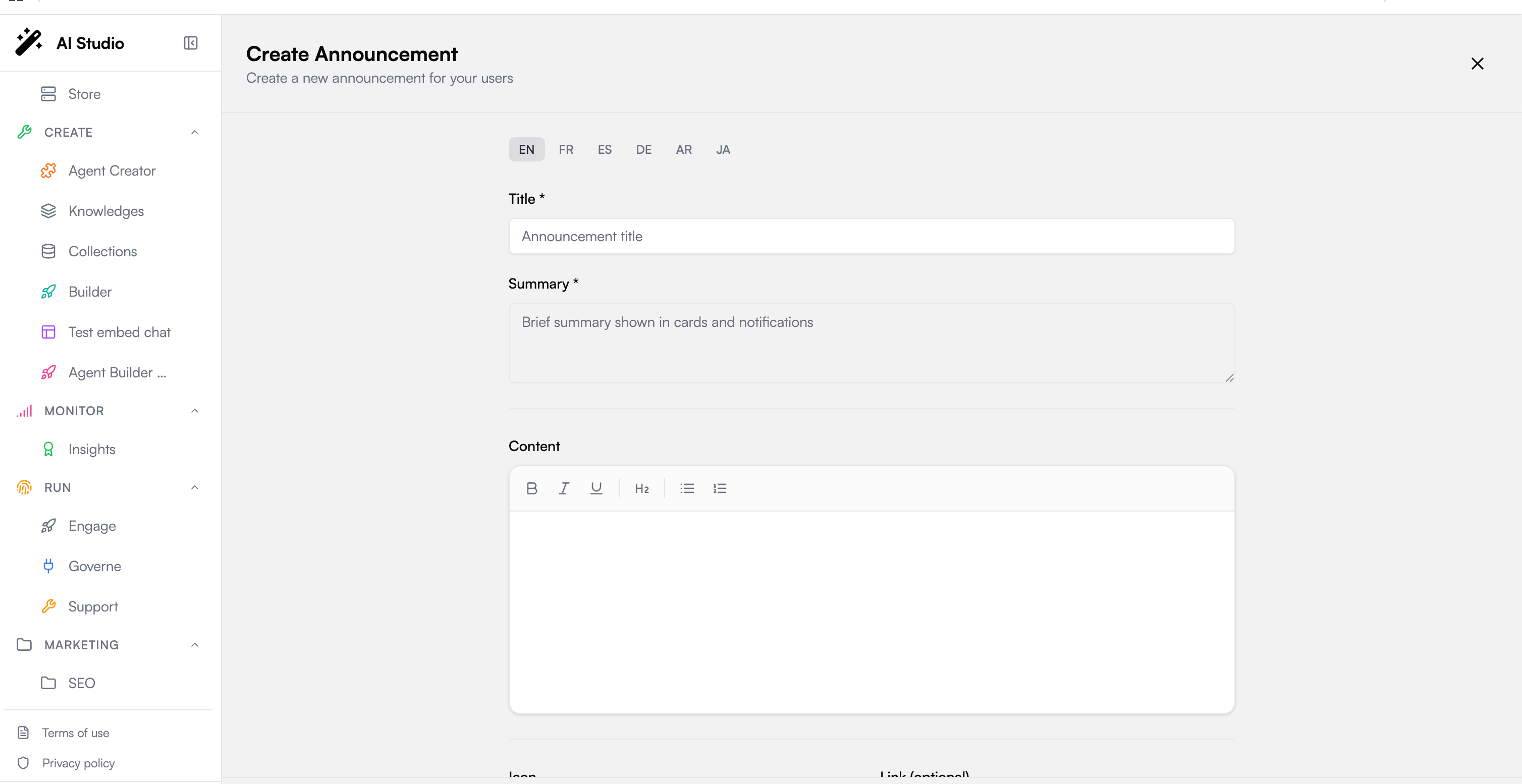
Every announcement carries three text fields:
* **Title**, the short headline. Required.
* **Summary**, a brief line shown first in cards and notifications. Required.
* **Content**, the full formatted body users read when they open the announcement.
### Rich text content
The content editor is a rich-text editor with a toolbar for:
* **Bold**, **italic**, and **underline**
* **Headings**
* **Bullet lists** and **numbered lists**
Use it to structure longer messages so they are easy to scan.
### Localization
Title, summary, and content are localized per language. Language tabs let you author each field in **English, French, Spanish, German, Arabic, and Japanese**, and a dot marks the languages you have already filled in. Each user reads the announcement in their own language. You only need to fill the languages you want to support; a title and summary in at least one language are enough to save.
### Icon, link, and expiration
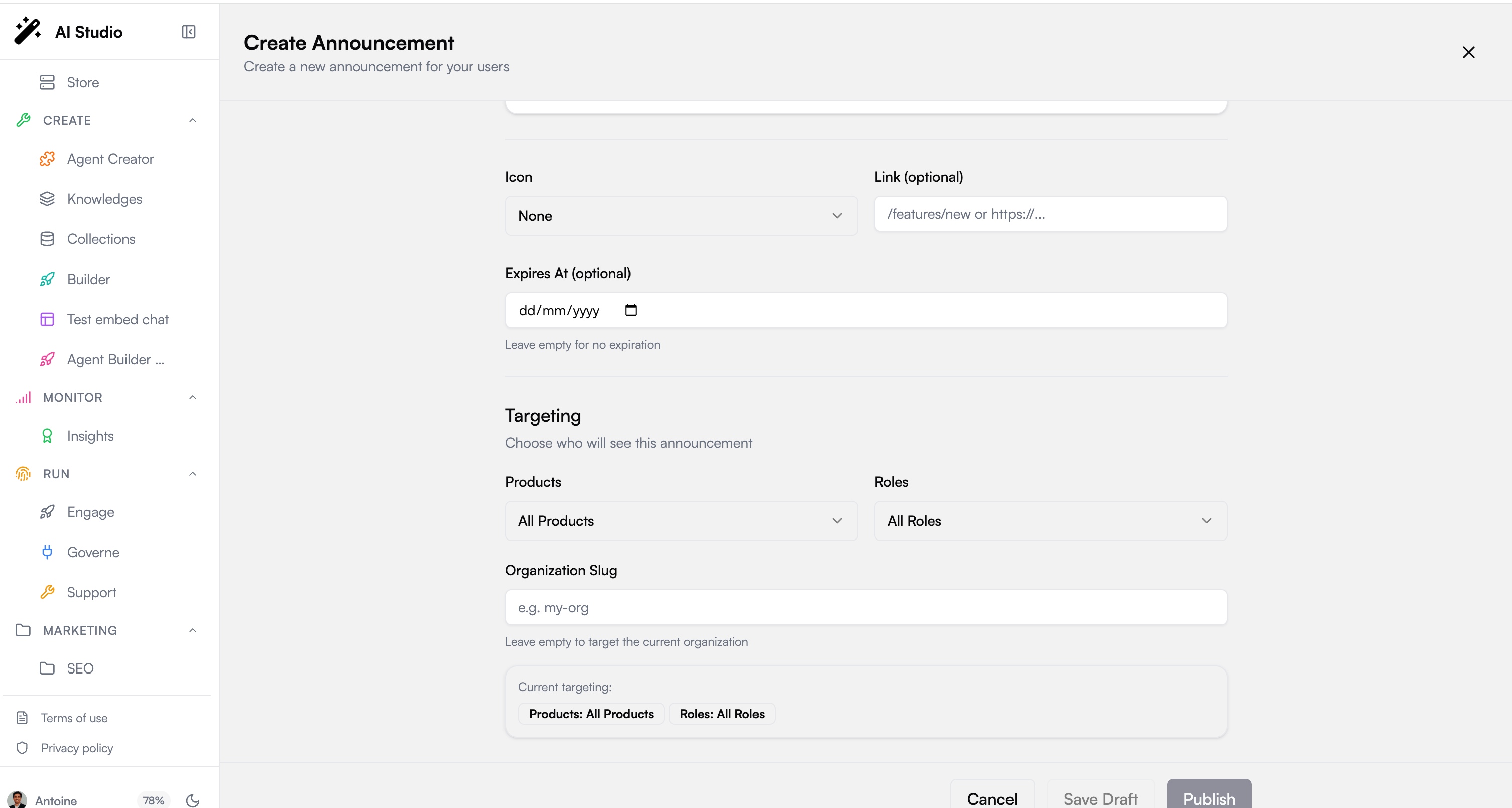
A few optional settings shape how the announcement appears and behaves:
* **Icon**, an optional emoji shown next to the title (megaphone, rocket, sparkles, and more). Leave it as **None** to use the default.
* **Link**, an optional click-through target. It can be an internal route like `/features/new` or an external URL like `https://...`.
* **Expires At**, an optional date after which the announcement stops showing. Leave it empty for no expiration.
### Status: draft or active
Two save actions control visibility:
* **Save Draft** keeps the announcement in **Draft** status so you can keep working. Drafts are not shown to users.
* **Publish** sets the announcement to **Active** and makes it live for its targeted audience.
## Targeting: the right message to the right people
Targeting decides who receives an announcement. You choose an audience across four dimensions, which are combined: a user must match the targeting to receive the announcement.
### Title, summary, and content
Every announcement carries three text fields:
* **Title**, the short headline. Required.
* **Summary**, a brief line shown first in cards and notifications. Required.
* **Content**, the full formatted body users read when they open the announcement.
### Rich text content
The content editor is a rich-text editor with a toolbar for:
* **Bold**, **italic**, and **underline**
* **Headings**
* **Bullet lists** and **numbered lists**
Use it to structure longer messages so they are easy to scan.
### Localization
Title, summary, and content are localized per language. Language tabs let you author each field in **English, French, Spanish, German, Arabic, and Japanese**, and a dot marks the languages you have already filled in. Each user reads the announcement in their own language. You only need to fill the languages you want to support; a title and summary in at least one language are enough to save.
### Icon, link, and expiration
A few optional settings shape how the announcement appears and behaves:
* **Icon**, an optional emoji shown next to the title (megaphone, rocket, sparkles, and more). Leave it as **None** to use the default.
* **Link**, an optional click-through target. It can be an internal route like `/features/new` or an external URL like `https://...`.
* **Expires At**, an optional date after which the announcement stops showing. Leave it empty for no expiration.
### Status: draft or active
Two save actions control visibility:
* **Save Draft** keeps the announcement in **Draft** status so you can keep working. Drafts are not shown to users.
* **Publish** sets the announcement to **Active** and makes it live for its targeted audience.
## Targeting: the right message to the right people
Targeting decides who receives an announcement. You choose an audience across four dimensions, which are combined: a user must match the targeting to receive the announcement.
 | Dimension | What it does |
| --------------- | --------------------------------------------------------------------------------------------------------------------------------------------------------------------------- |
| **Products** | Reach everyone (All Products), or only users of a specific product such as Agent Creator, Chat, Builder, Knowledge, Governe, Insights, Collection, Engage, or Agentic Board |
| **Roles** | Reach everyone (All Roles), or only holders of a specific role (Owner, Admin, Editor, Viewer, or your custom organization roles) |
| **Permissions** | Restrict to holders of a specific permission |
| **Users** | Send to specific individuals |
A targeting summary in the form shows the current products and roles selection at a glance.
**Central and per-org, as everywhere on the platform.** Organization admins publish to their own organization. Platform super-admins can additionally target a **specific organization** by its slug, using the Organization Slug field. Leave it empty to target the current organization.
## How it is stored
Announcements are backed by the platform's `/v1/announcements` endpoints, which handle creating, reading, updating, and deleting them. Published announcements are what feed the user-facing [notifications](./notifications) feed.
## Next steps
See where published announcements land for your users
Track totals, active count, and drafts at a glance
| Dimension | What it does |
| --------------- | --------------------------------------------------------------------------------------------------------------------------------------------------------------------------- |
| **Products** | Reach everyone (All Products), or only users of a specific product such as Agent Creator, Chat, Builder, Knowledge, Governe, Insights, Collection, Engage, or Agentic Board |
| **Roles** | Reach everyone (All Roles), or only holders of a specific role (Owner, Admin, Editor, Viewer, or your custom organization roles) |
| **Permissions** | Restrict to holders of a specific permission |
| **Users** | Send to specific individuals |
A targeting summary in the form shows the current products and roles selection at a glance.
**Central and per-org, as everywhere on the platform.** Organization admins publish to their own organization. Platform super-admins can additionally target a **specific organization** by its slug, using the Organization Slug field. Leave it empty to target the current organization.
## How it is stored
Announcements are backed by the platform's `/v1/announcements` endpoints, which handle creating, reading, updating, and deleting them. Published announcements are what feed the user-facing [notifications](./notifications) feed.
## Next steps
See where published announcements land for your users
Track totals, active count, and drafts at a glance