> ## Documentation Index
> Fetch the complete documentation index at: https://docs.prisme.ai/llms.txt
> Use this file to discover all available pages before exploring further.
# Collections
> Store, query, and visualize structured data for you and your AI agents
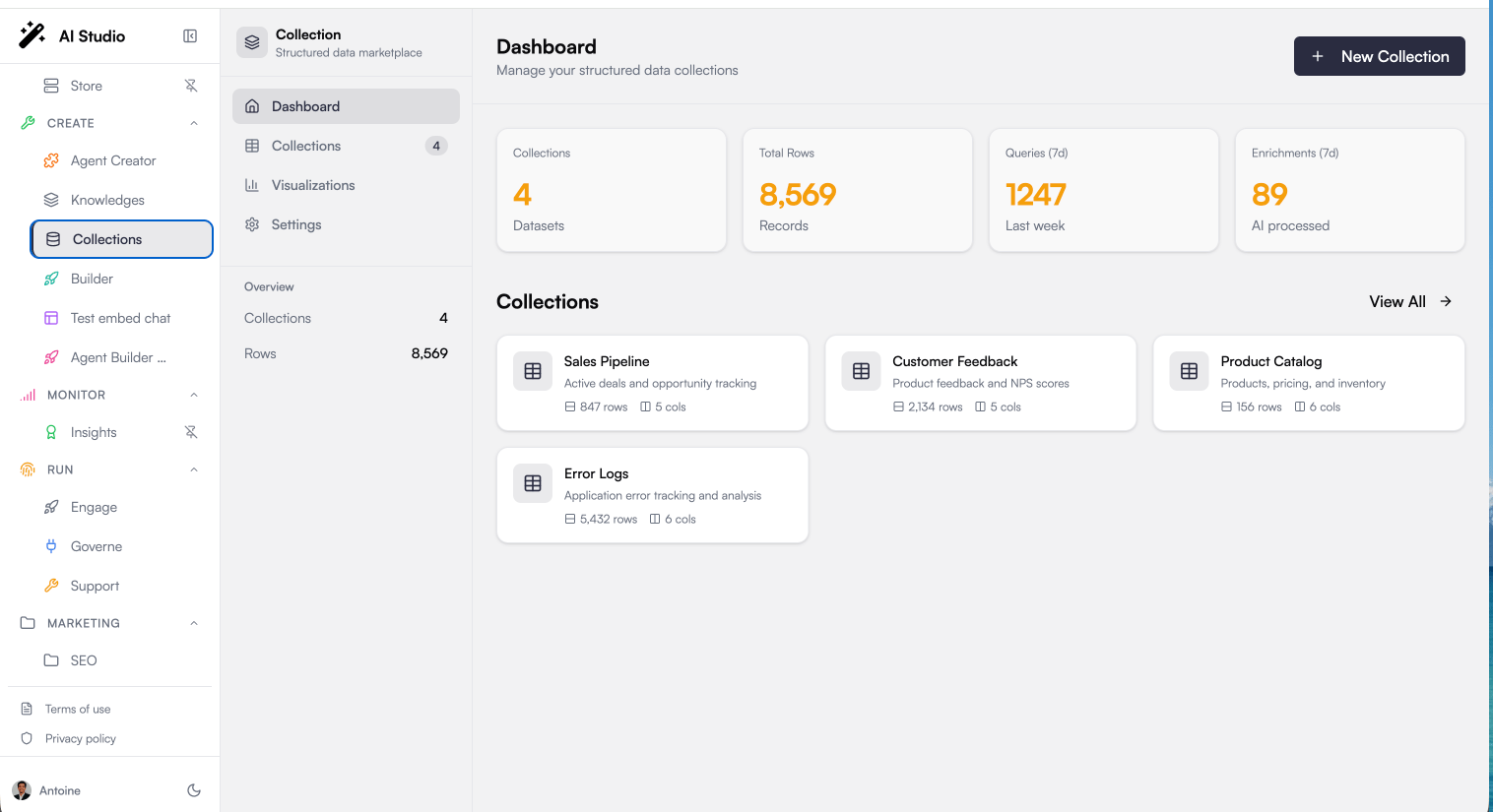 Collections is the structured data layer of Prisme.ai. While Knowledges manages your documents for retrieval, Collections manages your **tabular data** — rows and columns — with a spreadsheet-like interface that requires no database skills. Every collection is instantly usable by your AI agents: they can read it, analyze it, and write back to it.
## What You Can Use It For
Collections shines whenever your data fits in a table and you want AI on top of it:
Import your deals from a CSV export. Ask an agent "What's the total value of deals in negotiation?" and get an exact answer — computed, not guessed.
Centralize feedback, NPS scores, and survey answers. Let agents summarize sentiment trends and surface the most critical verbatims.
Keep a live catalog of products, prices, and stock. A support agent can answer "Is SKU X in stock?" from the source of truth.
Store error logs or incident records. An agent aggregates them by severity and service to spot what needs attention.
Give agents a durable place to record what they learn — leads captured in conversation, tasks completed, form answers — structured and queryable later.
The key difference with a knowledge base: when you ask "how many" or "what's the total", the answer comes from a **real computation over your data** (count, sum, average), not from text retrieval. Collections and Knowledges are complementary — structured facts in one, documents in the other.
## The Collections Workspace
The product is organized around four areas, accessible from the sidebar:
* **Dashboard** — key metrics at a glance: number of collections, total rows, queries and activity over the last 7 days, plus your most recent collections
* **Collections** — the full list of your collections, with search, creation, and deletion
* **Visualizations** — saved charts and dashboards built from your collections
* **Settings** — the MCP endpoint your agents use, and usage statistics
## How It Works
Start empty or upload a CSV file. Column names and types (text, number, date, boolean, URL) are detected automatically from your data.
Browse records in a paginated table. Sort by any column, select rows, and delete what you no longer need.
Link a collection to an agent in Agent Creator. The agent gains tools to query, count, aggregate, and update the data during conversations.
Build charts (bar, line, pie) on top of your collections to track distributions and trends.
## Key Concepts
### Collections and Records
A **collection** is a named dataset with a schema — a set of typed columns. Each row is a **record**. Schemas are flexible: agents can add new fields over time without migrations, and the columns adapt.
### Typed Columns
Every column has a type — `text`, `number`, `date`, `boolean`, or `url` — inferred automatically when you import data. Types drive how values are displayed (formatted numbers, Yes/No booleans, clickable links) and how they can be filtered and aggregated.
### Exact Queries, Not Retrieval
Agents query collections with structured filters and aggregations (count, sum, average, group by). Results are exact and deterministic — ideal for questions where an approximate answer is not acceptable.
### Ownership and Isolation
Each collection belongs to its creator, and agent data is isolated by default: an agent only sees the collections it has been granted access to. You can share a collection with several agents when they need to work on the same data.
## Collections vs. Knowledges
| | Collections | Knowledges |
| ----------------- | ------------------------------- | ---------------------------------- |
| Data shape | Rows and columns (structured) | Documents and pages (unstructured) |
| Typical content | Deals, tickets, catalogs, logs | PDFs, wikis, websites, policies |
| How agents use it | Filters, counts, sums, group-by | Semantic search and RAG |
| Answer style | Exact, computed | Synthesized from passages |
| Agents can write? | Yes — insert and update records | No — read-only retrieval |
**Available soon** — a capability store will let you extend your collections with **hooks** (pre- and post-processing of your data) and **connectors** (Salesforce, HubSpot, and more).
## Getting Started
From the Prisme.ai home, open the **Collections** product.
Click **New Collection** and upload a CSV export (up to 50 MB) — a sales report, a contact list, anything tabular.
Review the column types inferred from your file and the data preview, then confirm.
In Agent Creator, give an agent access to the collection and start asking questions about your data.
## Next Steps
Create, organize, and delete collections
Upload CSV files with automatic schema detection
Browse, sort, and manage your records
Give your agents read and write access to your data
Collections is the structured data layer of Prisme.ai. While Knowledges manages your documents for retrieval, Collections manages your **tabular data** — rows and columns — with a spreadsheet-like interface that requires no database skills. Every collection is instantly usable by your AI agents: they can read it, analyze it, and write back to it.
## What You Can Use It For
Collections shines whenever your data fits in a table and you want AI on top of it:
Import your deals from a CSV export. Ask an agent "What's the total value of deals in negotiation?" and get an exact answer — computed, not guessed.
Centralize feedback, NPS scores, and survey answers. Let agents summarize sentiment trends and surface the most critical verbatims.
Keep a live catalog of products, prices, and stock. A support agent can answer "Is SKU X in stock?" from the source of truth.
Store error logs or incident records. An agent aggregates them by severity and service to spot what needs attention.
Give agents a durable place to record what they learn — leads captured in conversation, tasks completed, form answers — structured and queryable later.
The key difference with a knowledge base: when you ask "how many" or "what's the total", the answer comes from a **real computation over your data** (count, sum, average), not from text retrieval. Collections and Knowledges are complementary — structured facts in one, documents in the other.
## The Collections Workspace
The product is organized around four areas, accessible from the sidebar:
* **Dashboard** — key metrics at a glance: number of collections, total rows, queries and activity over the last 7 days, plus your most recent collections
* **Collections** — the full list of your collections, with search, creation, and deletion
* **Visualizations** — saved charts and dashboards built from your collections
* **Settings** — the MCP endpoint your agents use, and usage statistics
## How It Works
Start empty or upload a CSV file. Column names and types (text, number, date, boolean, URL) are detected automatically from your data.
Browse records in a paginated table. Sort by any column, select rows, and delete what you no longer need.
Link a collection to an agent in Agent Creator. The agent gains tools to query, count, aggregate, and update the data during conversations.
Build charts (bar, line, pie) on top of your collections to track distributions and trends.
## Key Concepts
### Collections and Records
A **collection** is a named dataset with a schema — a set of typed columns. Each row is a **record**. Schemas are flexible: agents can add new fields over time without migrations, and the columns adapt.
### Typed Columns
Every column has a type — `text`, `number`, `date`, `boolean`, or `url` — inferred automatically when you import data. Types drive how values are displayed (formatted numbers, Yes/No booleans, clickable links) and how they can be filtered and aggregated.
### Exact Queries, Not Retrieval
Agents query collections with structured filters and aggregations (count, sum, average, group by). Results are exact and deterministic — ideal for questions where an approximate answer is not acceptable.
### Ownership and Isolation
Each collection belongs to its creator, and agent data is isolated by default: an agent only sees the collections it has been granted access to. You can share a collection with several agents when they need to work on the same data.
## Collections vs. Knowledges
| | Collections | Knowledges |
| ----------------- | ------------------------------- | ---------------------------------- |
| Data shape | Rows and columns (structured) | Documents and pages (unstructured) |
| Typical content | Deals, tickets, catalogs, logs | PDFs, wikis, websites, policies |
| How agents use it | Filters, counts, sums, group-by | Semantic search and RAG |
| Answer style | Exact, computed | Synthesized from passages |
| Agents can write? | Yes — insert and update records | No — read-only retrieval |
**Available soon** — a capability store will let you extend your collections with **hooks** (pre- and post-processing of your data) and **connectors** (Salesforce, HubSpot, and more).
## Getting Started
From the Prisme.ai home, open the **Collections** product.
Click **New Collection** and upload a CSV export (up to 50 MB) — a sales report, a contact list, anything tabular.
Review the column types inferred from your file and the data preview, then confirm.
In Agent Creator, give an agent access to the collection and start asking questions about your data.
## Next Steps
Create, organize, and delete collections
Upload CSV files with automatic schema detection
Browse, sort, and manage your records
Give your agents read and write access to your data