> ## Documentation Index
> Fetch the complete documentation index at: https://docs.prisme.ai/llms.txt
> Use this file to discover all available pages before exploring further.
# Importing Data
> Upload CSV files with automatic schema detection
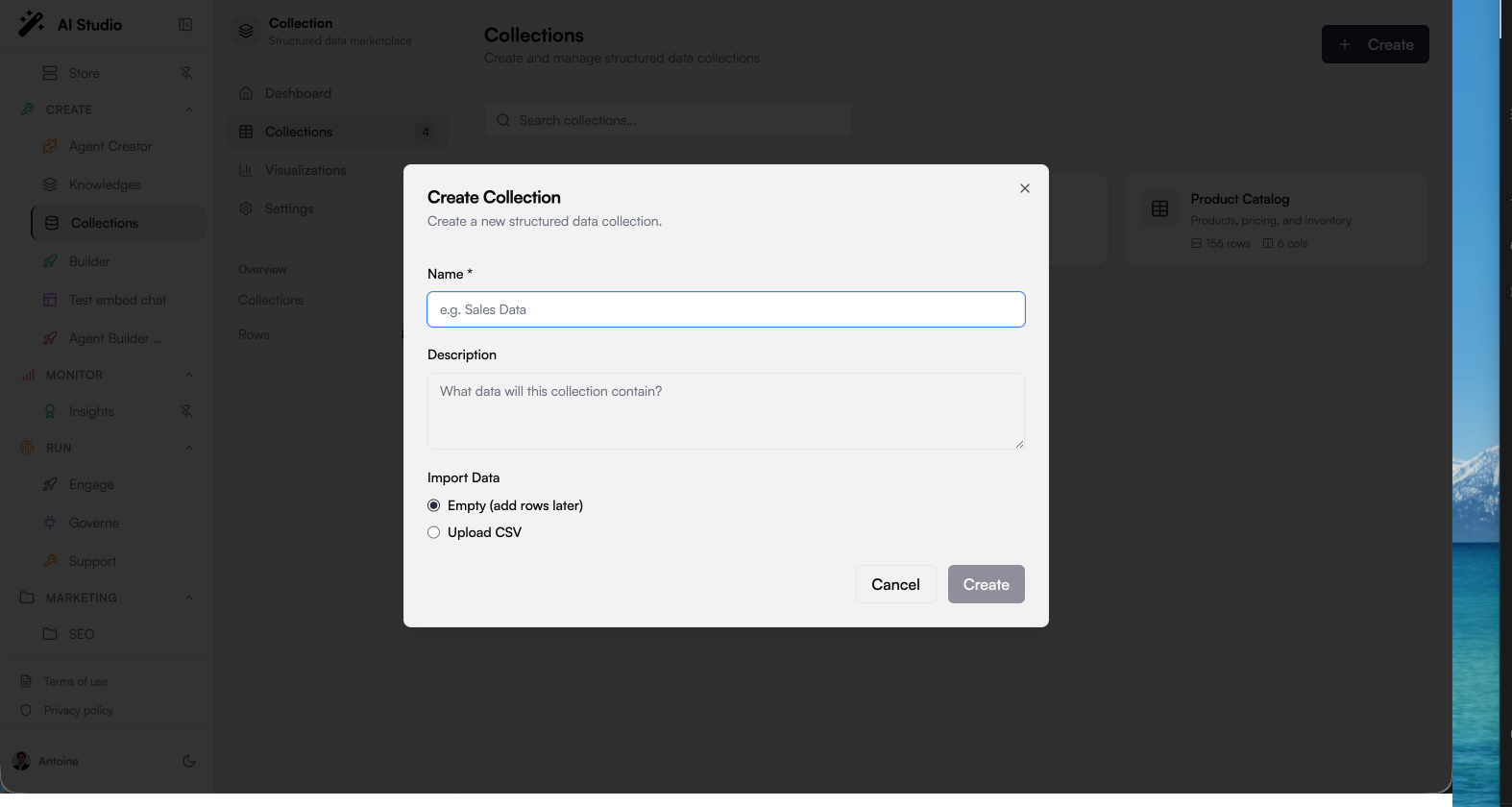 The fastest way to populate a collection is to upload a CSV file. Collections parses your file, detects column names and types automatically, and shows you a preview before anything is created.
## Uploading a CSV
Click **New Collection**, enter a name and optional description, then select **Upload CSV**.
Drag your `.csv` file into the drop zone, or click it to open the file picker. Files up to **50 MB** are accepted.
Once parsed, each column appears as a badge with its detected type, for example `company: text`, `deal_value: number`, `close_date: date`.
A paginated preview table shows sample rows exactly as they will be stored. Page through it to spot formatting issues before committing.
Click **Create**. The collection is created with the detected schema and all rows are imported. Use the **Remove** (trash) icon at any point before creating to discard the file and start over.
## How Type Detection Works
Collections scans a sample of your rows and assigns each column the most specific type that fits all its values:
| Detected type | Recognized values | Example |
| ------------- | ----------------------------- | -------------------------------- |
| `number` | Integers and decimals | `1247`, `3.14` |
| `date` | ISO dates and datetimes | `2026-02-25`, `2026-02-25 14:30` |
| `boolean` | `true` / `false` (any casing) | `TRUE`, `false` |
| `url` | `http://` or `https://` links | `https://example.com` |
| `text` | Everything else | `Acme Corp` |
A few rules to know:
* **Mixed columns fall back to text.** If a column contains `12`, `15`, and `N/A`, it becomes `text`; clean the stray values first if you need numeric aggregations.
* **Empty cells are allowed.** Columns with missing values are marked nullable; empty cells are shown as a dash.
* **Numbers are strict.** Only plain decimal notation is parsed (no scientific notation, no `0x` prefixes).
For dates, export in ISO format (`YYYY-MM-DD`) from your source tool. Localized formats like `25/02/2026` are not recognized as dates and will import as text.
## File Requirements
| Requirement | Value |
| ----------------- | ------------------------------------------------- |
| Format | `.csv` (comma-separated, standard RFC 4180) |
| Maximum file size | 50 MB |
| Header row | Required; the first row provides the column names |
| Encoding | UTF-8 recommended |
Excel files (`.xlsx`) are not supported directly; export your sheet as CSV first.
## Import Errors
| Message | Cause | Fix |
| -------------------------- | ----------------------------------------------------------- | -------------------------------------- |
| *Not a CSV file* | The file extension or content is not CSV | Export/save as `.csv` |
| *File exceeds 50 MB limit* | The file is too large | Split it or remove unused columns |
| *No data found in CSV* | The file is empty or only has a header | Check the export from your source tool |
| *Failed to parse CSV file* | Malformed rows (unbalanced quotes, inconsistent separators) | Re-export with standard settings |
## Adding Data Later
Importing at creation is not the only way to fill a collection:
* **Agents can write records** during conversations, using the collection's insert and update tools; see [Using Collections with Agents](/products/ai-collection/agents)
* **The API accepts batch inserts** of up to 1,000 records per call; see [API Reference](/products/ai-collection/api)
Schemas are flexible: records added later can introduce new fields, and the collection's columns adapt without a migration.
**Available soon**: the capability store will add **connectors** (Salesforce, HubSpot, and more) to sync data into collections directly from your business tools, and **hooks** to pre-process records as they arrive.
## Next Steps
Browse and manage your imported records
Let agents read and write your data
The fastest way to populate a collection is to upload a CSV file. Collections parses your file, detects column names and types automatically, and shows you a preview before anything is created.
## Uploading a CSV
Click **New Collection**, enter a name and optional description, then select **Upload CSV**.
Drag your `.csv` file into the drop zone, or click it to open the file picker. Files up to **50 MB** are accepted.
Once parsed, each column appears as a badge with its detected type, for example `company: text`, `deal_value: number`, `close_date: date`.
A paginated preview table shows sample rows exactly as they will be stored. Page through it to spot formatting issues before committing.
Click **Create**. The collection is created with the detected schema and all rows are imported. Use the **Remove** (trash) icon at any point before creating to discard the file and start over.
## How Type Detection Works
Collections scans a sample of your rows and assigns each column the most specific type that fits all its values:
| Detected type | Recognized values | Example |
| ------------- | ----------------------------- | -------------------------------- |
| `number` | Integers and decimals | `1247`, `3.14` |
| `date` | ISO dates and datetimes | `2026-02-25`, `2026-02-25 14:30` |
| `boolean` | `true` / `false` (any casing) | `TRUE`, `false` |
| `url` | `http://` or `https://` links | `https://example.com` |
| `text` | Everything else | `Acme Corp` |
A few rules to know:
* **Mixed columns fall back to text.** If a column contains `12`, `15`, and `N/A`, it becomes `text`; clean the stray values first if you need numeric aggregations.
* **Empty cells are allowed.** Columns with missing values are marked nullable; empty cells are shown as a dash.
* **Numbers are strict.** Only plain decimal notation is parsed (no scientific notation, no `0x` prefixes).
For dates, export in ISO format (`YYYY-MM-DD`) from your source tool. Localized formats like `25/02/2026` are not recognized as dates and will import as text.
## File Requirements
| Requirement | Value |
| ----------------- | ------------------------------------------------- |
| Format | `.csv` (comma-separated, standard RFC 4180) |
| Maximum file size | 50 MB |
| Header row | Required; the first row provides the column names |
| Encoding | UTF-8 recommended |
Excel files (`.xlsx`) are not supported directly; export your sheet as CSV first.
## Import Errors
| Message | Cause | Fix |
| -------------------------- | ----------------------------------------------------------- | -------------------------------------- |
| *Not a CSV file* | The file extension or content is not CSV | Export/save as `.csv` |
| *File exceeds 50 MB limit* | The file is too large | Split it or remove unused columns |
| *No data found in CSV* | The file is empty or only has a header | Check the export from your source tool |
| *Failed to parse CSV file* | Malformed rows (unbalanced quotes, inconsistent separators) | Re-export with standard settings |
## Adding Data Later
Importing at creation is not the only way to fill a collection:
* **Agents can write records** during conversations, using the collection's insert and update tools; see [Using Collections with Agents](/products/ai-collection/agents)
* **The API accepts batch inserts** of up to 1,000 records per call; see [API Reference](/products/ai-collection/api)
Schemas are flexible: records added later can introduce new fields, and the collection's columns adapt without a migration.
**Available soon**: the capability store will add **connectors** (Salesforce, HubSpot, and more) to sync data into collections directly from your business tools, and **hooks** to pre-process records as they arrive.
## Next Steps
Browse and manage your imported records
Let agents read and write your data